
Shiptheory supports the use of printers automatically.
This means when a new shipment is created, it will automatically send the shipment to a specific printer.
Print Client
To print automatically with Shiptheory, you'll need to download and install the Shiptheory Print Client. You will want to do this on the computer that is connected to the printer. This allows Shiptheory to connect directly with your printers, skipping the need to download a PDF of your labels.
You can follow the below guides on how to download and install the Shiptheory Print Client:
Once installed, ensure the Shiptheory Print Client is always open and it will run in the background of that computer, serving as a connection between your Shiptheory account and your printers. If your labels are not printing, the first thing to check is if Shiptheory Print Client is open.
You should see a small circular symbol in your system toolbar (bottom right for Windows, top right for Mac).

Printing based on Carrier
You'll then want to configure your automatic printing settings. On this page, you can choose the printer and PC you want to use for your labels to print from.
For example, the setting below sets it so that all DPD orders will automatically be printed out of the TSC printer selected.
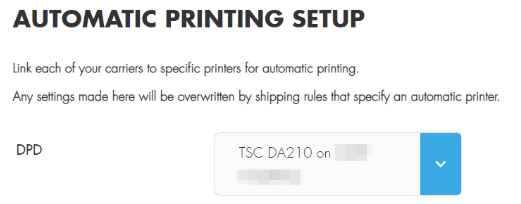
You can select a different printer for each carrier, or you can have carriers share printers; as long as the printers are contactable by the print client, there should be no issue.
Additionally you can control the order in which your labels are automatically printed. There are three options for this:
- Date downloaded (Prints the labels in order of oldest date first)
- Shipment ID
- Order ID
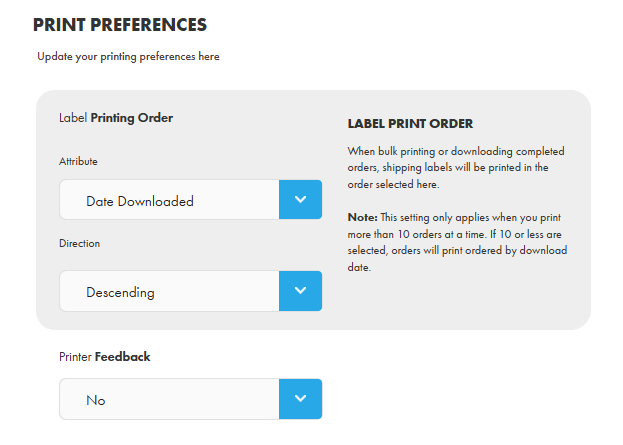
IMPORTANT: When printing using the Shipment ID or the Order ID the values of the IDs MUST be unique. If the values are not unique then the printing system will not be able to work as intended.
Printing from the Dashboard
On the automatic printing page, you are also able to define which printers are able to be selected from the Shiptheory dashboard to print directly to. You can select any printer that is visible from your Shiptheory print client.
You can see here that we've selected a Zdesigner printer to be available from the dashboard:

This means that when selecting an order on your dashboard, you are able to print directly to that printer without using a PDF:

The label will then print straight from that printer. You're able to change what printers are available from the dashboard at any time by removing or adding printers to the "Available Printers" field.
Printing with Barcode Scanning
Another option, once you've set up the print client on your machine is to use the barcode scanning tool with Shiptheory. This will allow you to scan barcodes for your orders and have Shiptheory automatically print the corresponding label for that order.
To access this page, click on the barcode scanner icon on your Shiptheory dashboard:
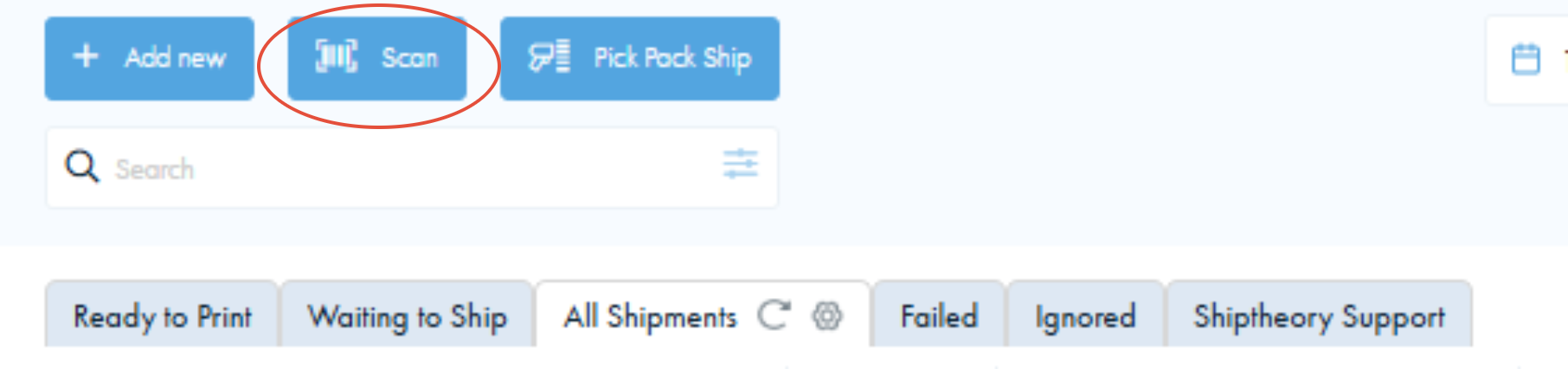
Once on this page, select from the printers visible to the client on your computer and any orders scanned through on this page will automatically print to the designated printer.

Printing Based on Rules
You are also able to automatically print based on the rule in Shiptheory that the order matched up to. This will mean that every order that books in using that rule, will print automatically to the specified printer. To do this, navigate to your shipping rules page and select a rule to attach a printer to:

In this example, we'll use the above DPD rule. Click edit from the dropdown, and within the rule select an automatic printer, as you can see here:

Save the rule and any orders that match with it will automatically print to the selected printer.
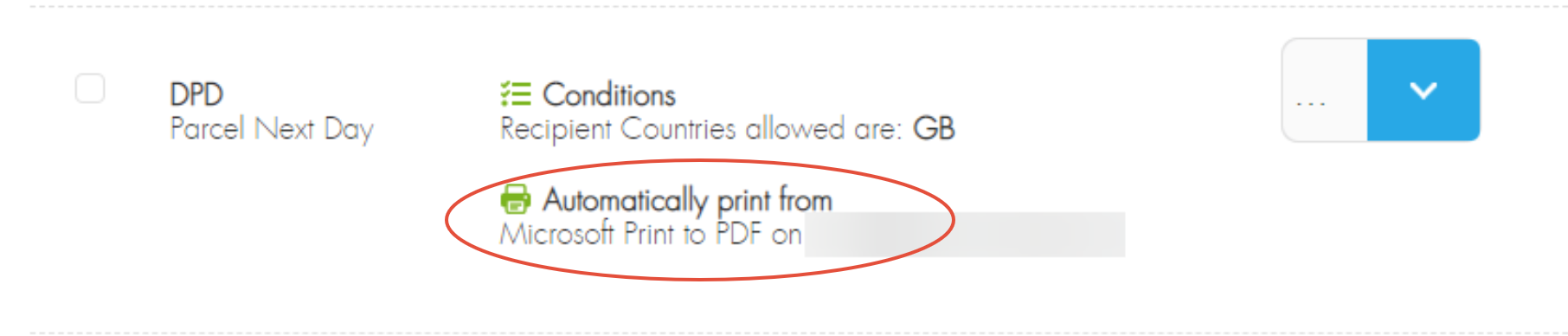
One important thing to note is that a automatic printer on a rule will always have priority over an automatic printer for a carrier. So with this rule, if we had DPD set to auto print to Printer A, and this rule set to auto print to Printer B, printer B would be used for orders booking in on the rule. We'll address this in more detail later on.
Printing Based on Channel User
For supported channels in Shiptheory, you can set your automatic printers to print to specific users.
For example, one setup can be Royal Mail orders print on label printer "A" using Carrier based automation.
Another setup can be User "Chad" automatically prints out on label printer "B".
Here's more information on Printing per User, and the supported sales channels for this functionality in this guide: Sales Channel User-Specific Printing
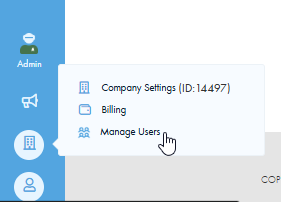
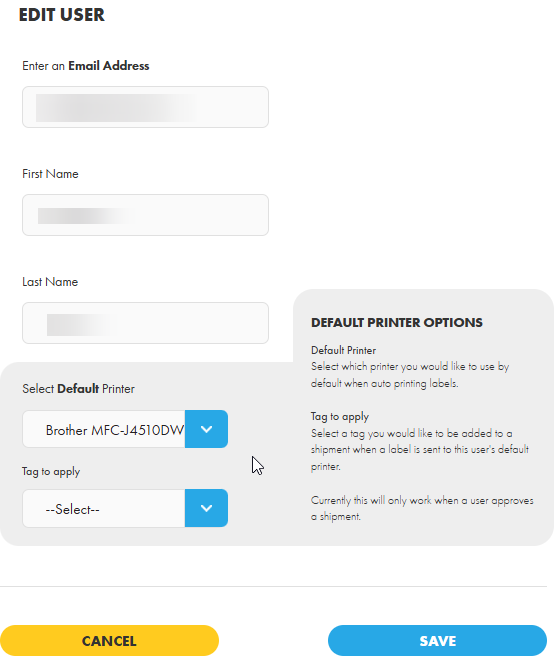
If you're using a supported channel for this, navigate to this page via the building icon, then Manage Users to view your available users to use with automatic printing. Open the Users settings to add the printer: User-Specific Printers Setup
Once a shipment is booked with a courier, if the shipment user matches one of your user-specific mappings, the label will be automatically printed directly to the associated printer.
Automatic Printing Priority
It's important to know the priority process of auto printing. If you have auto printing for rules, carriers and channel users, which takes priority over others? This flowchart here shows you a step by step of how this process works:

This is broken down in some more detail in this guide: Automatic Printing Order (Flowchart)
If there is anything here that you're stuck on, or would like any help to get automatic printing set up, please feel free to either give us a call on 0117 403 4313 or contact us here.