
On November 1st 2026 EU customs requirements changed. EU customs authorities strictly enforce line-level Product Identifiers (PIDs) on B2C import declarations. Shipments missing accurate product identifier codes risk customs holds, clearance delays, or return to origin. The new requirements apply to all B2C shipments where the intrinsic value of the products is less than €150 and goods are moved from a non-EU country to an EU country. B2B shipments are excluded from these requirements.
| Identifier | Field Purpose | Requirement |
| M-PID (Merchant Product Identifier) | Seller’s SKU, retail product ID, or marketplace listing reference. | Mandatory |
| NS-PID (Non-Standard Manufacturer PID) | Manufacturer's internal model, part, or style number. (Use your own maker code only if you manufacture the item.) | Mandatory |
| S-PID (Standardised Manufacturer PID) | International barcode standard such as GTIN, EAN, UPC, or ISBN. | Mandatory if available |
TABLE OF CONTENTS
- Creating a new custom field in NetSuite
- Setting the value for a custom field in NetSuite
- Setting up custom field mapping in Shiptheory
Creating a new custom field in NetSuite
Custom fields can be set up on Netsuite's 'Item' Objects, 'Line Item' Objects or 'Item Fulfillment Line Item' Objects depending on what your workflow requires. This guide will show you how to set up a new custom field on the NetSuite 'Item' object.
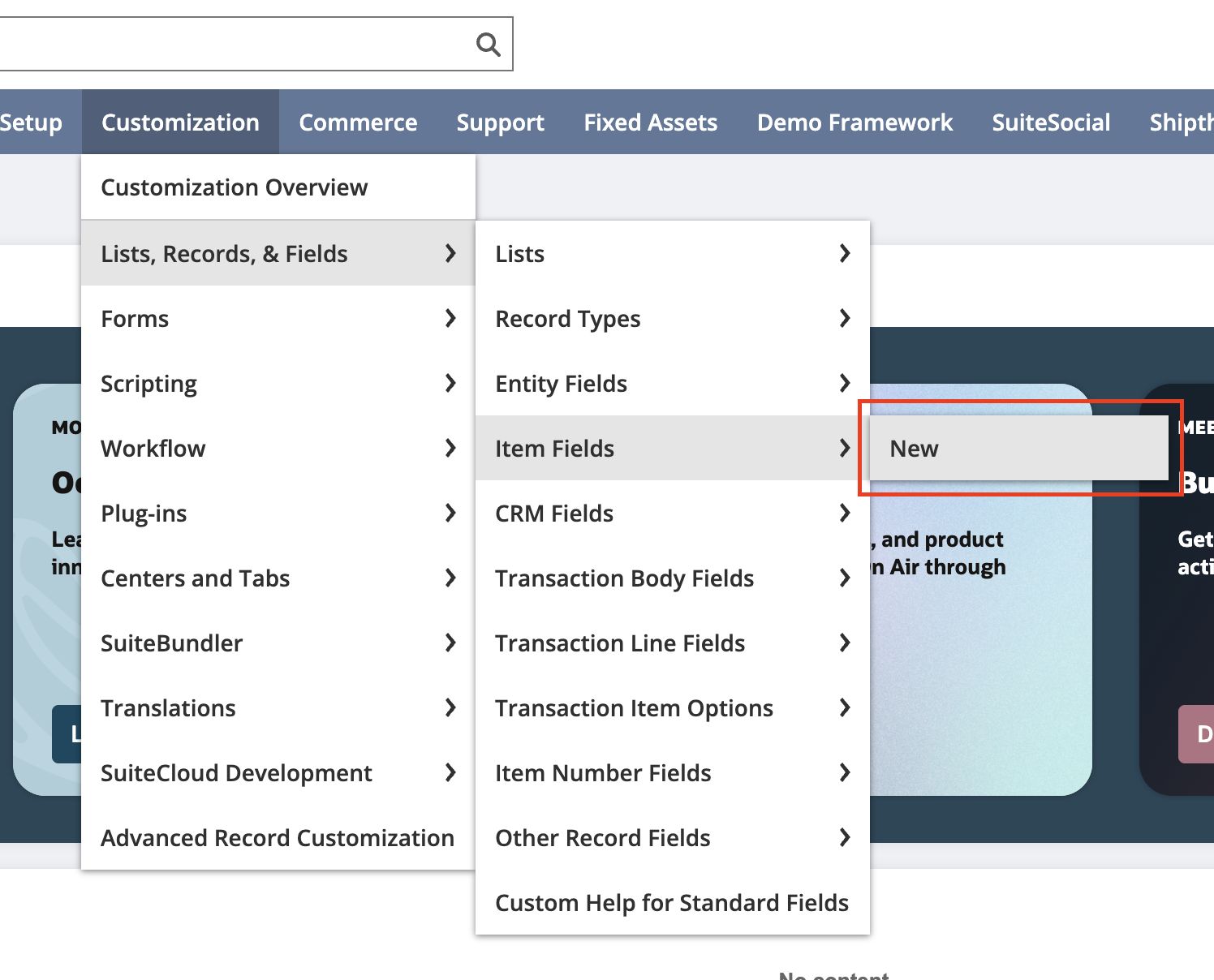
1, From the main menu in NetSuite navigate to Customization > Lists, Records and Fields > Item Fields > New
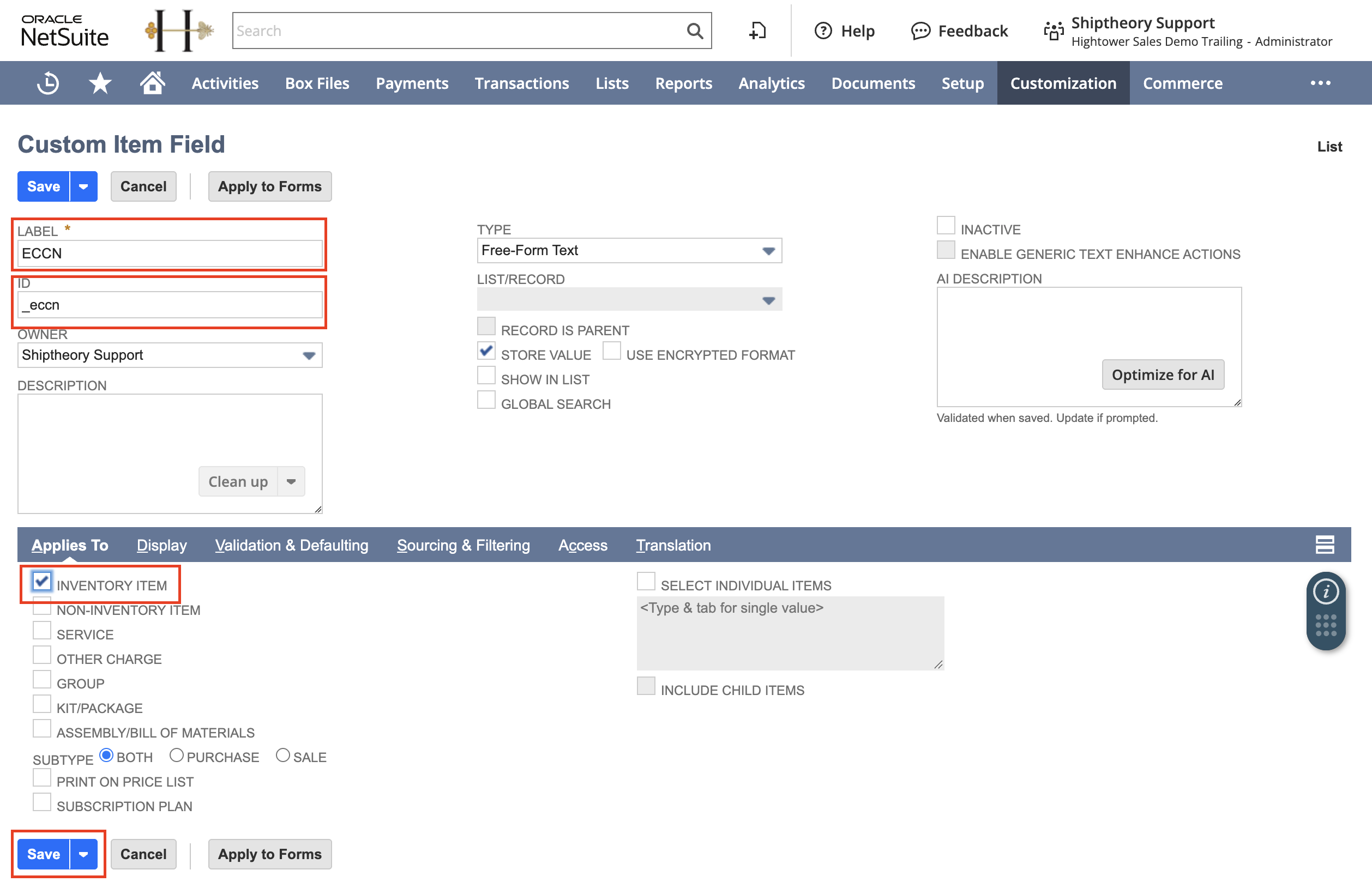
2, On the Custom Item Field page enter a 'LABEL' for your new custom field, specify the 'ID' for this custom field (It's recommended that you start the ID with an underscore (eg. _eccn) make sure 'INVENTORY ITEM' is checked and then click the 'SAVE' button.
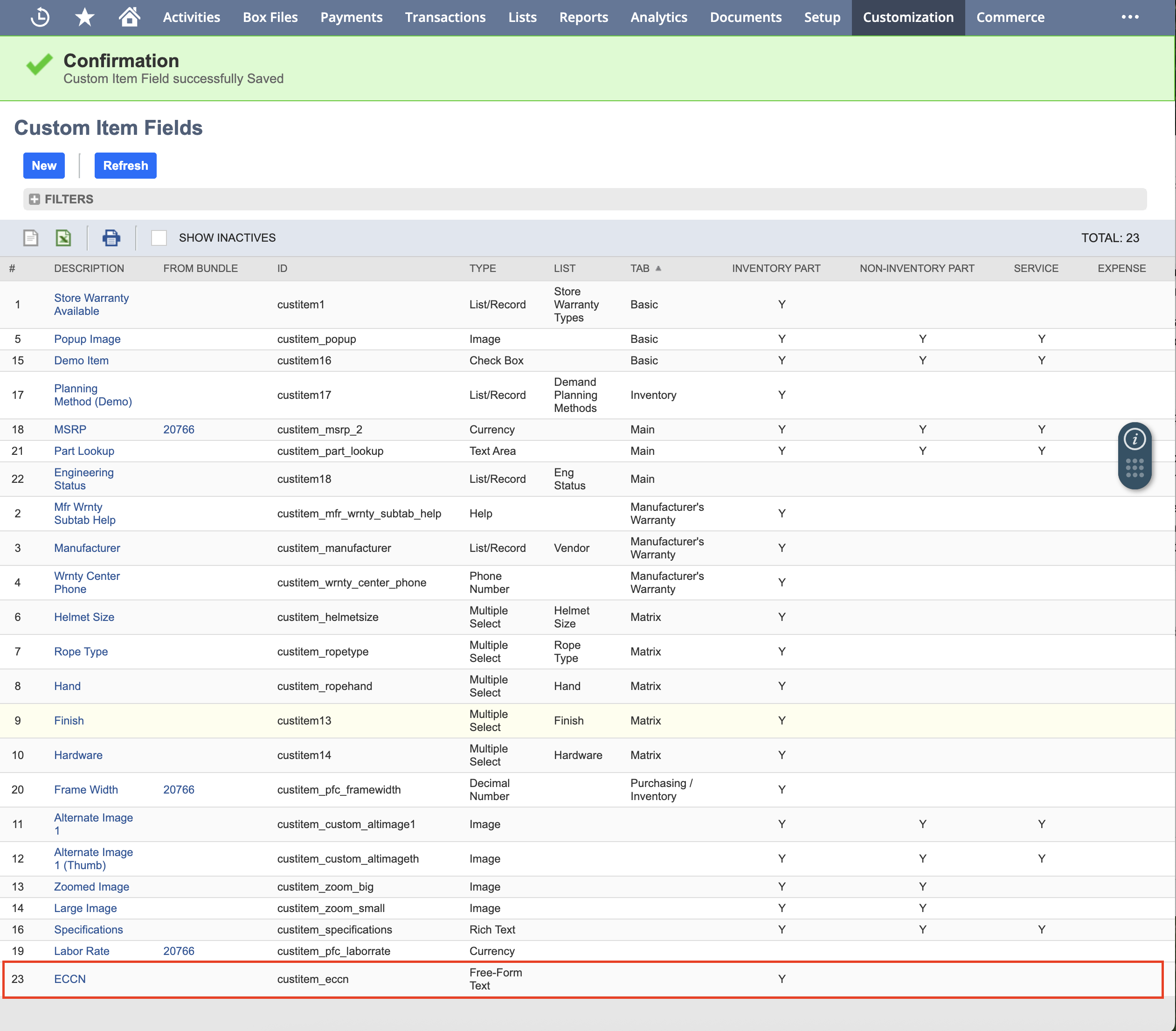
3, You will be taken to the Custom Item Fields page, you'll find your new Custom Item Field in the list.
All custom field IDs have a prefix of 'custitem' added which is why it's recommended when you create the ID in the previous step you start the ID with an underscore, it makes it easier to find in the list.
Make a note of your Custom Field ID, this is what you will need later when you are setting up the custom field mapping in Shiptheory. In this example the custom field ID is 'custitem_eccn'
Your new custom field will automatically be added to all existing and new items in your NetSuite inventory. In the next step we will edit the value for your new custom field for a item in your inventory.
Setting the value for a custom field in NetSuite
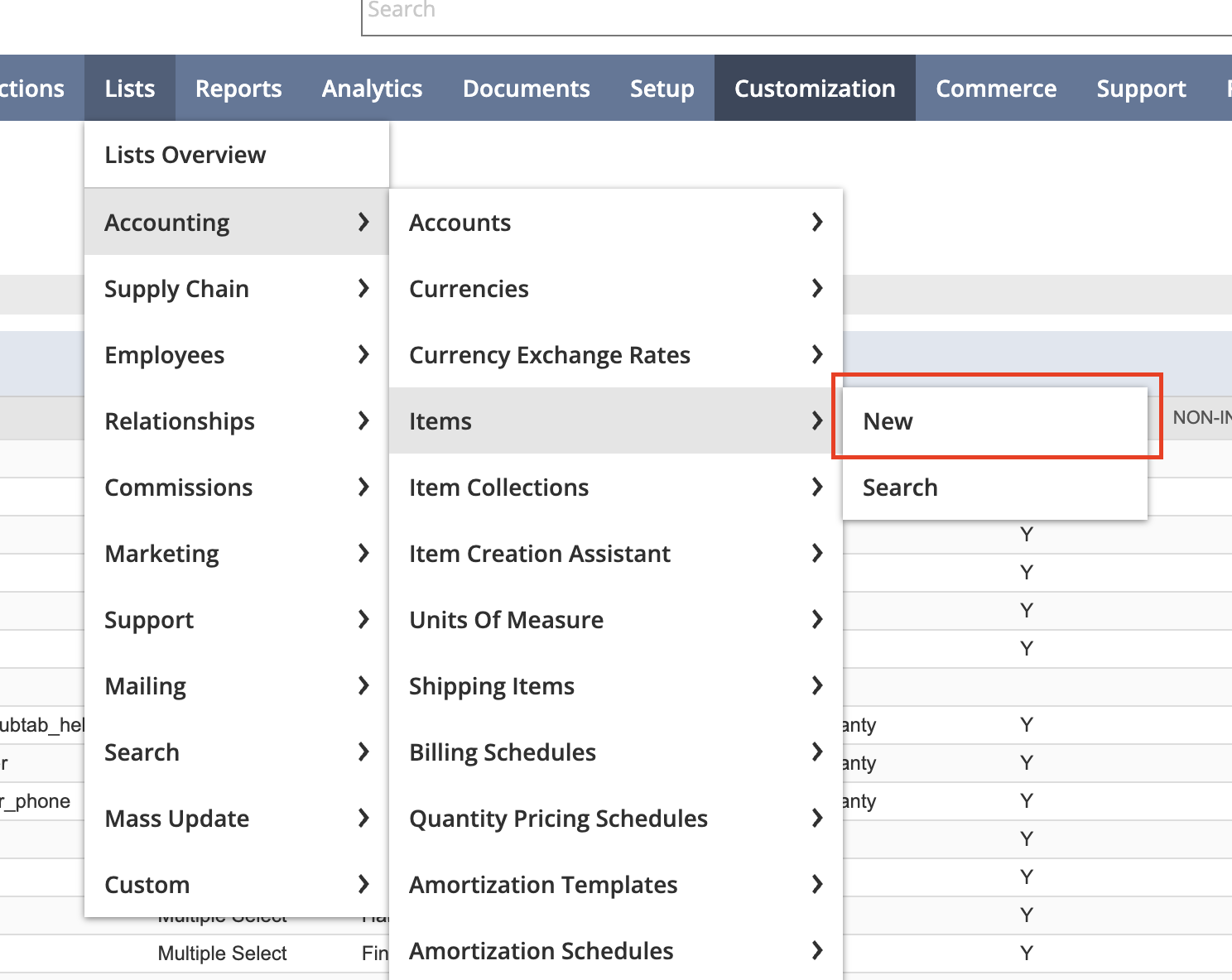
4, To edit the value in your new custom field, go back to the main menu and navigate to Lists > Accounting > Items > New (or) Search (depending on whether you need to create a new item or edit an existing item)
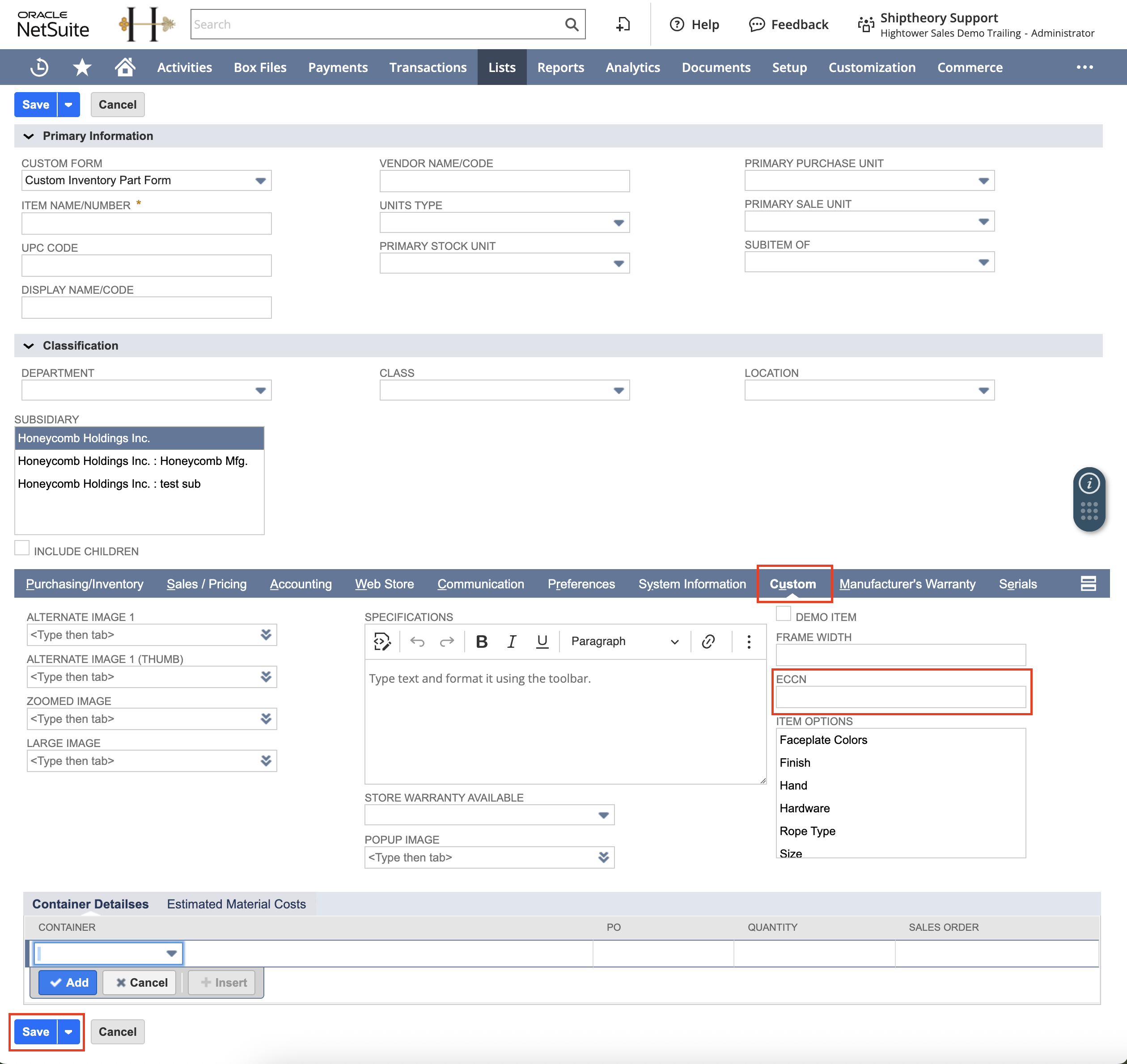
5, On the Inventory Item page use the secondary menu to navigate to the 'CUSTOM' tab, here you will find the custom field you created in the previous step. Enter the value required for that field and click the 'SAVE' button. You will need to update each of the items in your inventory with the required values individually.
Setting up custom field mapping in Shiptheory
6, Log into Shiptheory and from the main menu navigate to Channels > Manage Channels > NetSuite
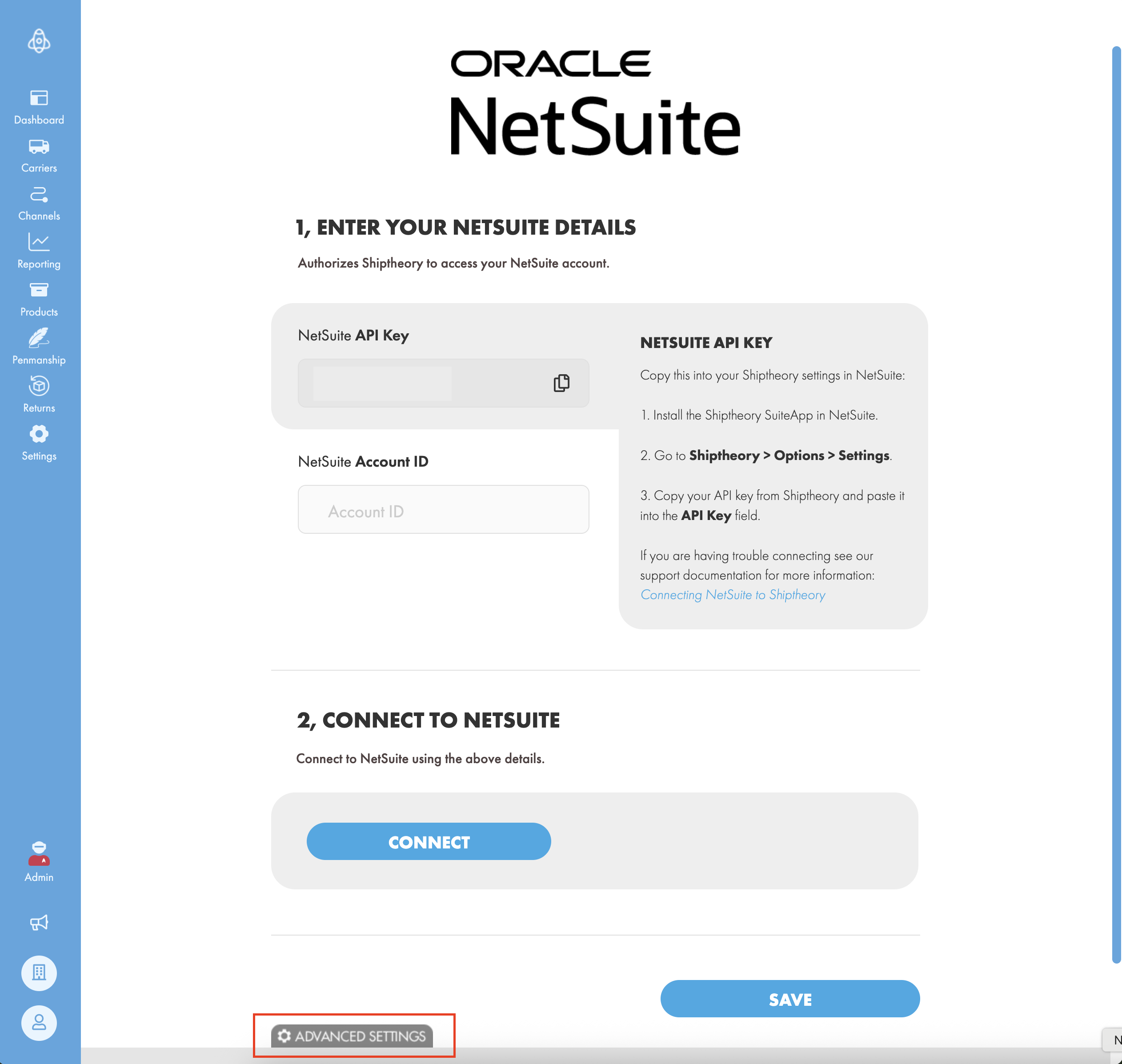
Scroll down and expand the 'Advanced settings' section at the bottom of the NetSuite channel settings page.
7, Scroll down to the 'Custom Field Overrides' section. Here you can configure how you to want Shiptheory to use the data from the custom field you created earlier.
We created our custom field on NetSuite's 'Item' Object so that is what needs to be selected from the 'Netsuite Object' dropdown menu. If you created your custom field on a different NetSuite Object, select the relevant option here.
Enter the custom field ID for the custom field you created earlier in the 'Custom Field ID' text field. This is the ID that has the prefix of 'custitem' - in this example the custom field ID is 'custitem_eccn'.
The last step is to choose the Shiptheory shipment property that you want your custom field value mapped to from the 'Shipment Property' dropdown. In this case we want the value from our custom field to be mapped to the 'ECCN' shipment property in Shiptheory so choose 'ECCN' from the drop down menu.
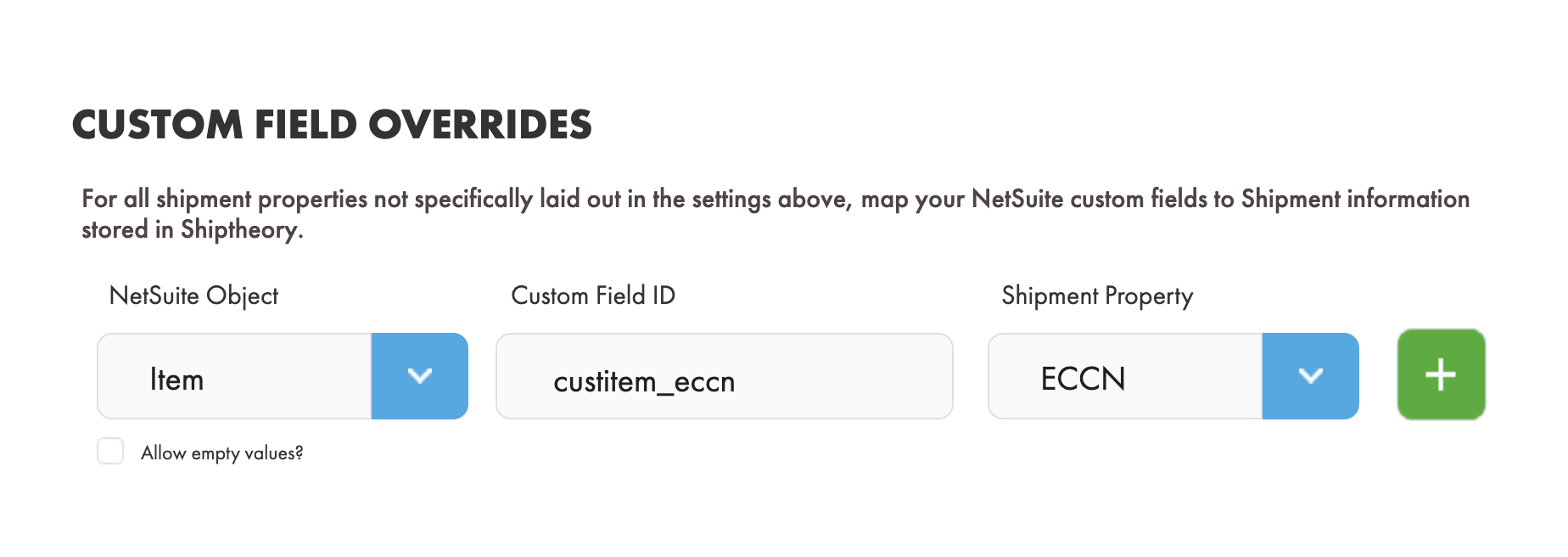
Once this step is complete, the next time an order is imported from NetSuite to Shiptheory that contains a product with a value in the custom field it will be mapped to the relevant shipment property in Shiptheory.
More infomation on custom field mapping for NetSuite in Shiptheory can be found
here: https://support.shiptheory.com/a/solutions/articles/24000075317