
TABLE OF CONTENTS
- Getting Started with Asendia Connect
Getting Started with Asendia Connect
Asendia Connect is Asendia's new shipping platform for UK customers. To connect Asendia Connect with your Shiptheory account, follow the simple steps below.
Contact your Asendia account manager and ask for your API Key and your CRM ID. Your account manager will also confirm which services your account is set up for.
Please note: Asendia Connect is for UK Asendia accounts only. A UK account has a CRM ID that starts with 'GB', for example GB12345678. If your account is outside the UK, please use our Asendia integration instead.
Add Asendia Connect to your Shiptheory Account
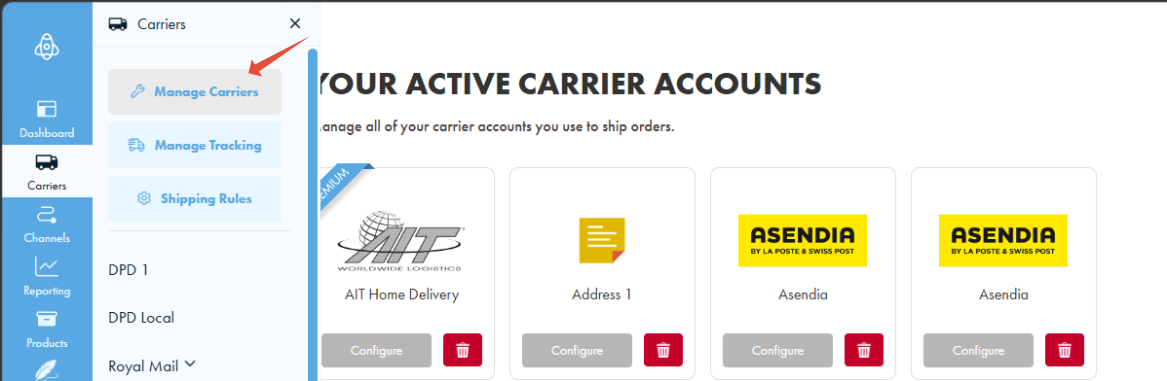
From any page in Shiptheory, click on the "Carriers" icon, and select the "Manage Carriers" option.
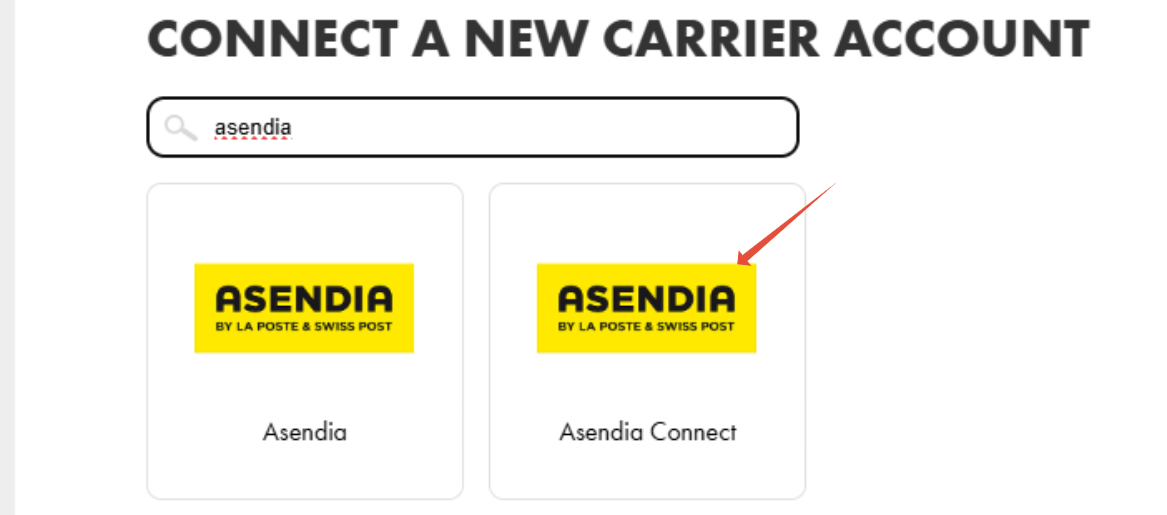
In the next page, scroll down until you find the Asendia Connect icon, or type the name into the search box to find it fast. Click on the icon to add.
In the next page, enter the following:
- API Key - provided to you by Asendia.
- CRM ID - provided to you by Asendia, and must start with 'GB'.
- Sales Type - choose "Retail Sales" if you send goods from your own store or website, or "Marketplace Sales" if you send goods sold through a marketplace such as Amazon or eBay.
- Company Name - Asendia require the company name in your Sender address to match the name they hold for your account. If the company name in your Shipping Location does not match, enter your company name here. This is not needed if you have selected "Marketplace Sales".
- Type of Export Goods - a general description of what you send, for example "Goods", "Gifts" or "Replacements".
- Default Currency - the currency your sales are made in. This is used when your shipment data has no currency of its own.
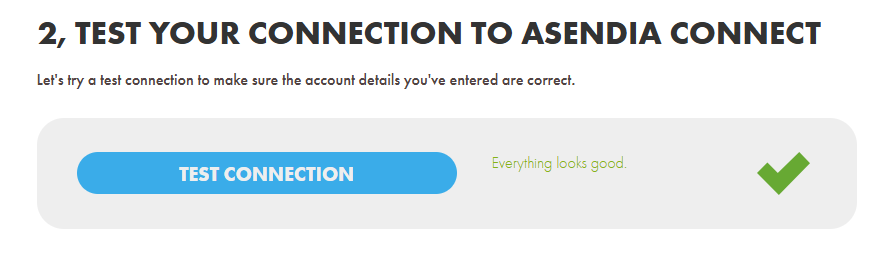
Next, click on Test Connection to check your details. If the authentication is successful, you'll see "Everything looks good." Finally, click Save to complete the setup.
Advanced Settings
There are a few advanced settings you can use to customise your Asendia Connect integration. Click the cog icon labelled "Advanced Settings" to open them. All of them are optional.
Weight Conditions
You can either set a minimum weight that will be used on your shipments, or override every shipment weight with the weight you enter here.
- At least - the weight is used only when your shipment weighs less than it.
- Equals - the weight replaces the weight on every shipment.
Auto-update Shipment Weights
Asendia require that the total weight of your shipment contents equals the declared total shipment weight. Shiptheory can adjust this for you.
- Update total shipment weight - calculate the total shipment weight from the product weights.
- Update product weights - adjust the product weights to match the total shipment weight.
Please note: Shiptheory cannot accept responsibility for any increased shipment charges or customs clearance issues as a result of this setting.
Shipment Value
Choose which value is sent to Asendia for customs.
- Use shipment value - the total value of the shipment, as stated in your shipment data.
- Use sum of product value - all of the product values on the shipment added together.
Products with a price of 0
Choose how Shiptheory handles a product with no price.
- Use Zero - send the price of the product as 0.
- Use Minimum Value - send the minimum value you enter alongside this setting. The minimum allowed is 0.20.
Automatically Trim Long Shipping Data
Asendia limit the length of several fields, such as address lines and names. Choose whether Shiptheory warns you that data is too long, or trims it and sends the shipment anyway.
Important: Turning this on could result in a loss of important shipping data and Shiptheory cannot accept responsibility for any incorrectly addressed consignments as a result.
Type of Package
The type of package or parcel you normally send, for example "Box" or "Tube".
Customs Charges Responsibility
Where there is any import duty or taxes payable on an international shipment, choose who covers the cost.
- Receiver, Paid on Delivery (DDU) - the receiver pays any charges when the parcel is delivered.
- Sender, Pre-Paid (DDP) - you pay the charges up front.
This is the default for your account. It can be overridden on an individual shipment by the service you choose, or by a DDP or DDU enhancement.
Default Country of Manufacture
Asendia require a country of manufacture for every product. If that information is missing from your product data, the country you choose here is sent instead.
Services
Your account manager will confirm which of these your account can book. The services available in Shiptheory are:
- e-PAQ Standard
- e-PAQ Plus
- e-PAQ Select
- e-PAQ Elite
Enhancements
Enhancements are chosen per shipment, either in your Shiptheory rules or when booking manually. The enhancements available depend on the service.
A few enhancements cannot be used together:
- Only one of Customs Pre-Paid (DDP) and Customs Paid on Delivery (DDU).
- Only one Enhanced liability level.
- Only one of Retail Sale and Marketplace Sale. These override the Sales Type in your settings for that shipment.
- A DDP or DDU enhancement cannot contradict the service. For example, "e-PAQ Select DDP" cannot be booked with the DDU enhancement.
What your shipments need
Asendia check every shipment, so a booking will fail if any of the following is missing:
- At least one product. Asendia require product information for customs.
- A recipient first name. Asendia needs recipient first names for customs and delivery purposes.
- Recipient address line 1, city, country and name, each up to 30 characters, and a postcode where the destination country uses them.
- A description and a country of manufacture for every product. The description is limited to 18 characters. Set a Default Country of Manufacture if your product data does not always have one.
- A number of parcels no greater than the total quantity of products. Asendia reject a parcel with no contents, so three parcels need at least three items.
Already using the old Asendia integration?
UK accounts now book through Asendia Connect, so the old Asendia integration no longer accepts a CRM ID starting with 'GB'. Accounts outside the UK carry on using the old integration as they do today.
Your existing old Asendia connection keeps working while you move across. Set up Asendia Connect alongside it, update your shipping rules to the new services, then remove the old connection when you are happy.
If you encounter any issues, please feel free to contact our support team. You can call us on 0117 403 4313 (UK) / +1 (629) 666-6726 (US) or reach us online here.