
Shiptheory's integration with Business Central allows you to override and remap the data downloaded from Business Central in to Shiptheory.
For example, where Shiptheory might normally download a receipient's city from the sale's Sell-to City field, you could override this to download from a different field, or even a completely different table.
How to add a field mapping
In Business Central, search for Shiptheory Settings (magnifying glass icon, ALT+Q (Windows) or CTRL+ALT+Q (MacOS)) to view the Shiptheory app settings and field mappings.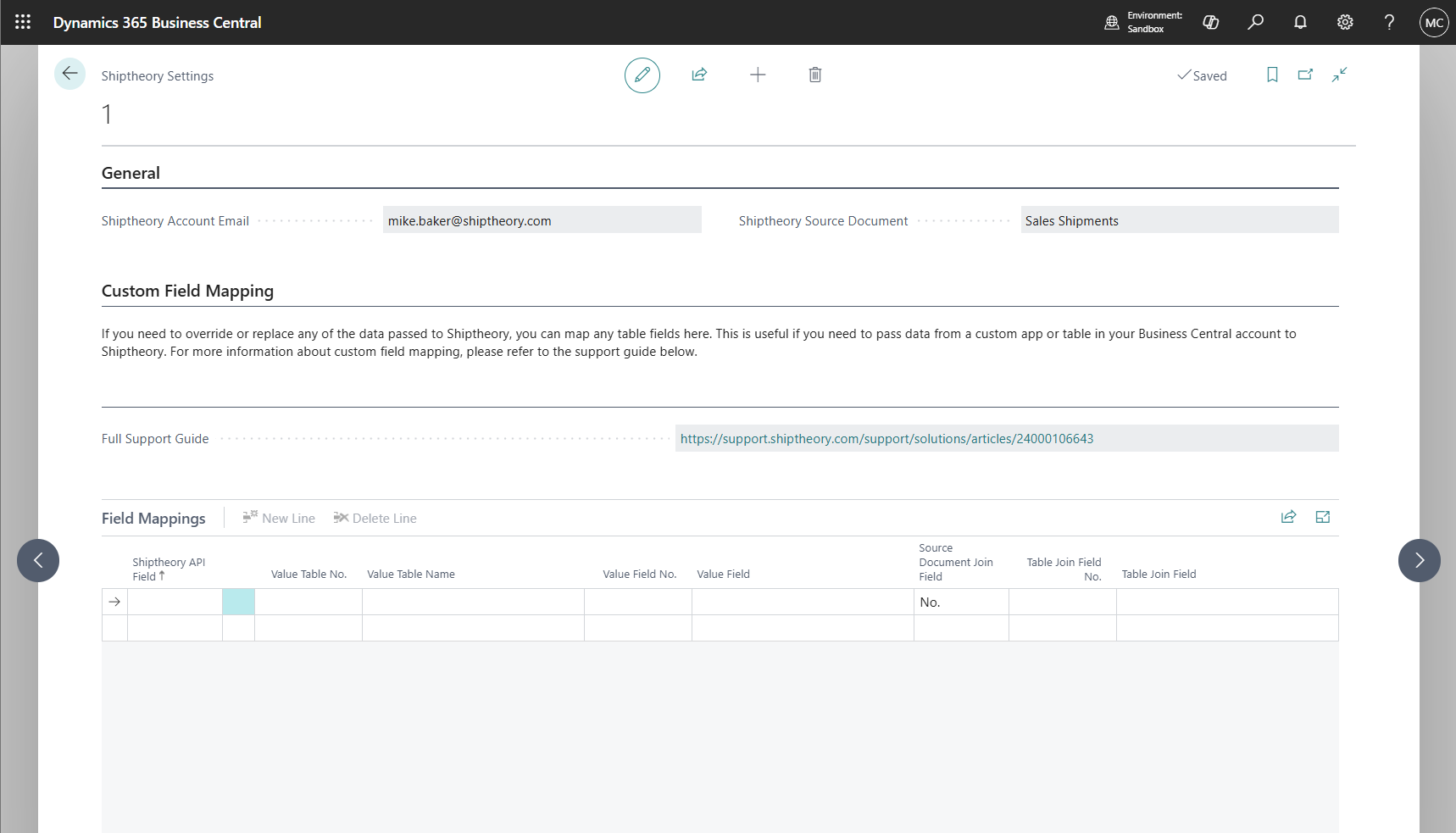
In the Field Mappings table, you will need to enter:
- Source Document Field
Specifies the data field you would like to remap and override. The list shows the fields available to remap for the Source Document selected when you connected Shiptheory and Business Central (e.g. Sales Shipment or Sales Invoice). - Value Table No./Name & Value Field No./Name
The Business Central table and field you want to override the data field with. Business Central will warn you if you need to grant the Shiptheory app additional read permissions. Read below for more information. - Source Document Join Field
The field in the source document table that links with the table you're remapping to. This helps the Shiptheory app to select the correct table record. See the example below for more information. - Table Join Field No./Name
The field in the the table you're remapping to that links with the source document. This helps the Shiptheory app to select the correct table record. See the example below for more information.
An example
In this example, a user has set Business Central's Sales Shipments as their Source Document and would like to override Shipment Date and replace it with the Promised Pay Date field from the Sales Invoices table.
Consider a Sales Order, Sales Shipment and Posted Sales Invoice relationship in Business Central exists like below. You can see that both the Sales Shipment and Posted Sales Invoice have a field called Order No containing the same, parent/base Sales Order No (100235):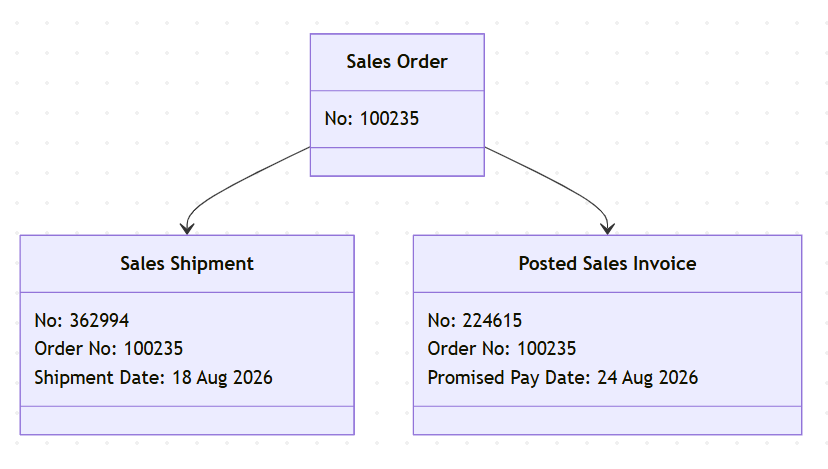
Therefore, the Field Mapping in Shiptheory Settings should be entered like this:
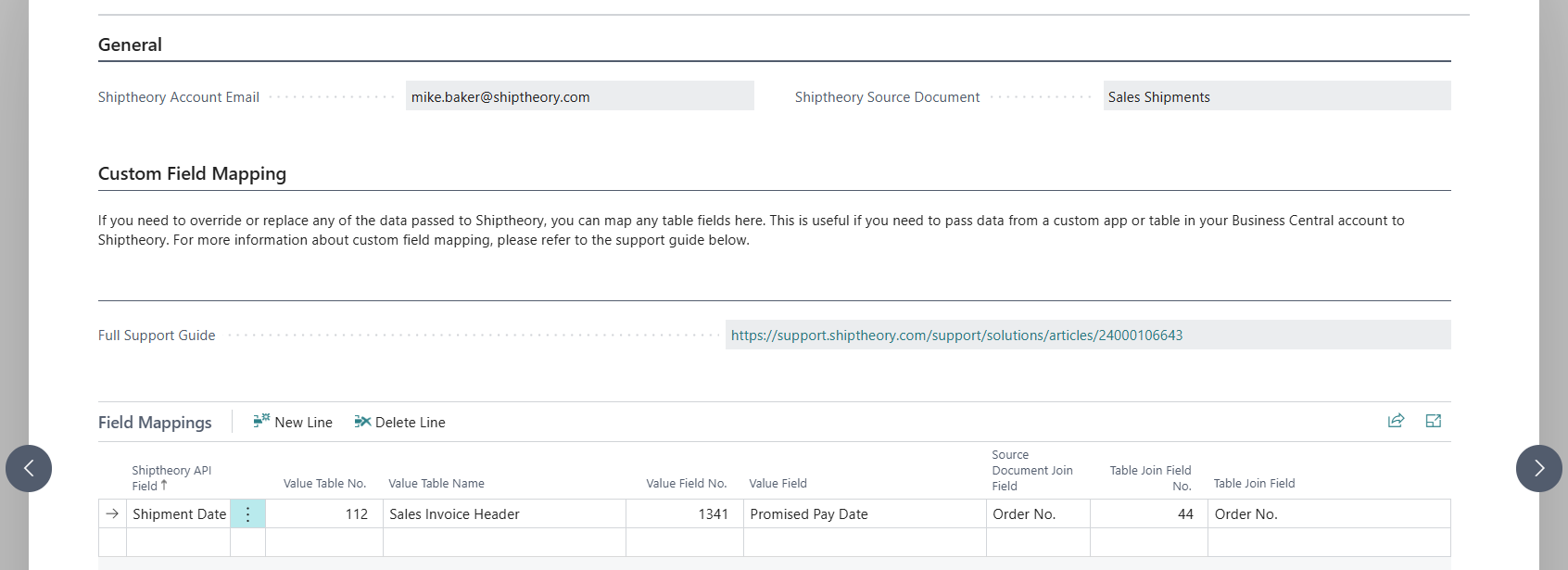
Source Document Field: Shipment Date (from Sales Shipments)
Value Table Name: Sales Invoice Header
Value Field Name: Promised Pay Date
Source Document Join Field & Table Join Field Name: Order No.
This tells the Shiptheory app that, in order to find the correct Sales Invoice in Business Central, look for the record with the an Order No. value that matches the Sales Shipment > Order No.
How to grant additional table permissions
The Shiptheory app will already have permission to read most native tables in Business Central, but if you select a table created or owned by a third-party app you may need to grant additional for Shiptheory to read the data. You will see a warning notification like this: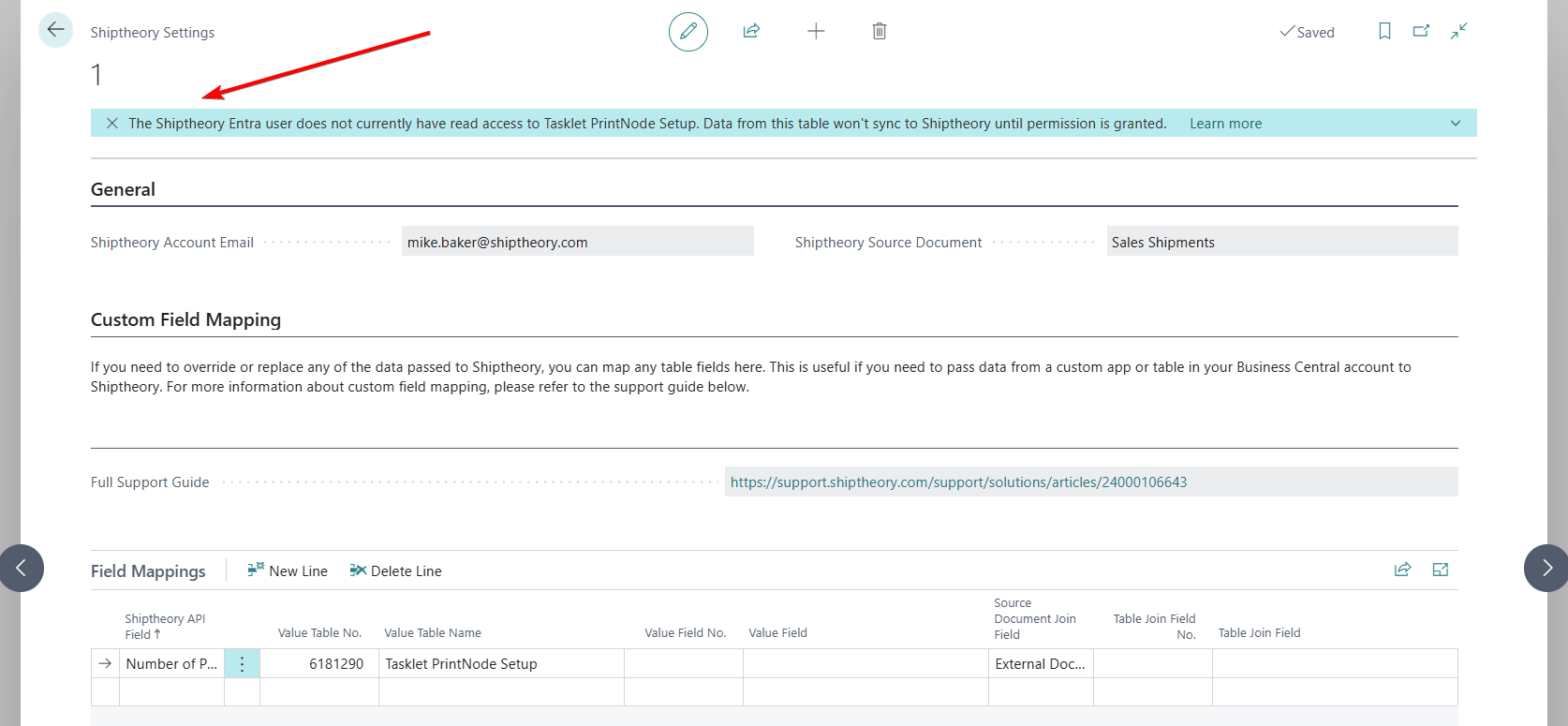
In Business Central, search for Microsoft Entra Applications (magnifying glass icon, ALT+Q (Windows) or CTRL+ALT+Q (MacOS)) and select the Shiptheory entry added when you first connected Shiptheory and Business Central.
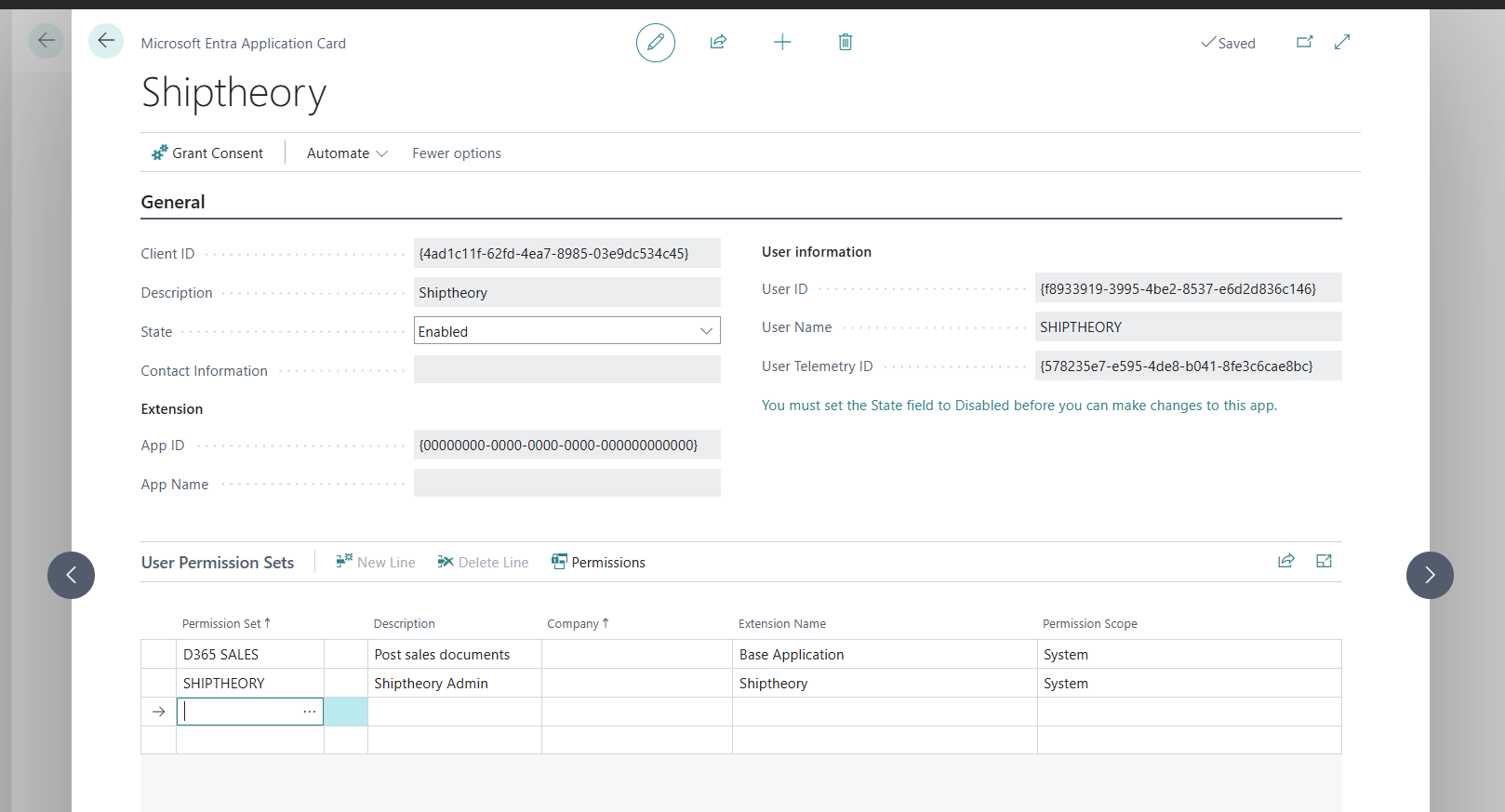
Under User Permission Sets, add permissions to the Shiptheory app that cover the table(s) you need to set in field mapping. You may need to reach out to third party app developers to find out which permission set grants read access to their tables. Shiptheory support will not be able to assist with this.
Once you've granted permission, return to Shiptheory Settings and re-add the field mapping. If you don't receive a warning notification, then you're good to go!
If you encounter any issues, please feel free to contact our support team. You can call us on 0117 403 4313 (UK) / +1 (629) 666-6726 (US) or reach us online here.