
It's quite simple, really. But it's always worth having a quick overview of how Business Central and Shiptheory work together so you can get the most out of both!
If you've not yet connected your Business Central and Shiptheory accounts, take a look here to get connected: Connecting Business Central and Shiptheory
Receiving shipment notifications from Business Central
When connecting Shiptheory, you will be asked what source document type in Business Central you would like to connect to, e.g. Sales Shipment or Sales Invoice. The selected document type will be what Shiptheory "listens for", downloads into Shiptheory as its shipments and posts courier tracking details back to in Business Central.
When a new document of the selected type is created or updated in Business Central, a notification (webhook) is sent to instruct Shiptheory to download or update the shipment information in Shiptheory from Business Central. This process is automatic and normally very quick, though it's worth mentioning that it can sometime take a couple of minutes for Business Central to send a notification - something that Shiptheory has no control over.
Saving shipment details from Business Central
Shiptheory saves all the relevant details from Business Central typically required to book shipments with your couriers. There are a few options avialable in Shiptheory to configure the right information to get saved the way you want, see:
- Setting up Business Central in Shiptheory for general settings
- Configuring "Shipment Lines Options" in Shiptheory for Business Central for shipment packages and shipping charges settings
Number of Parcels
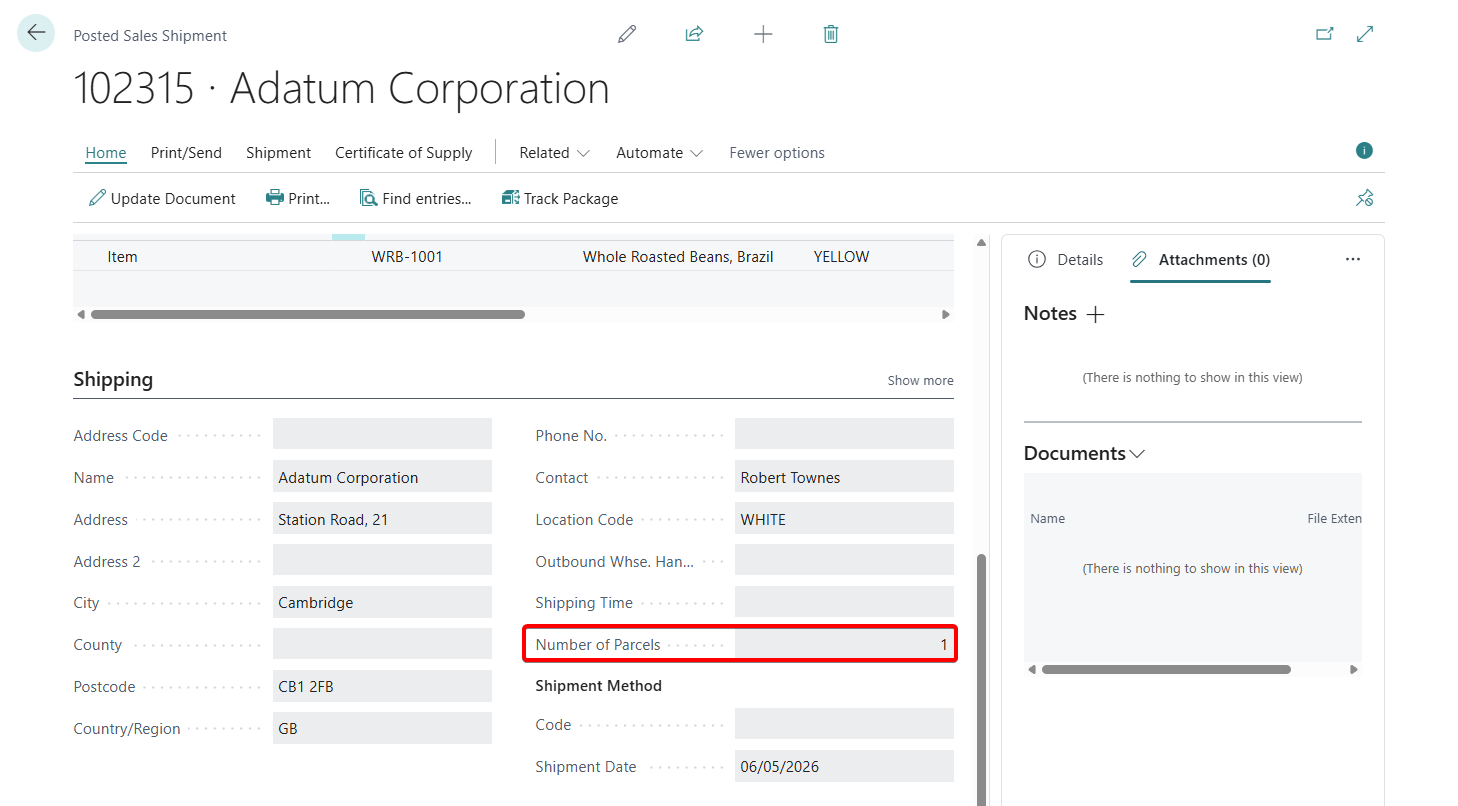
The Shiptheory app in Business Central adds a new input field to your selected source document (e.g. Sales Shipement or Posted Sales Invoice) called "Number of Parcels" to set and send the number of parcels to book with couriers in Shiptheory:
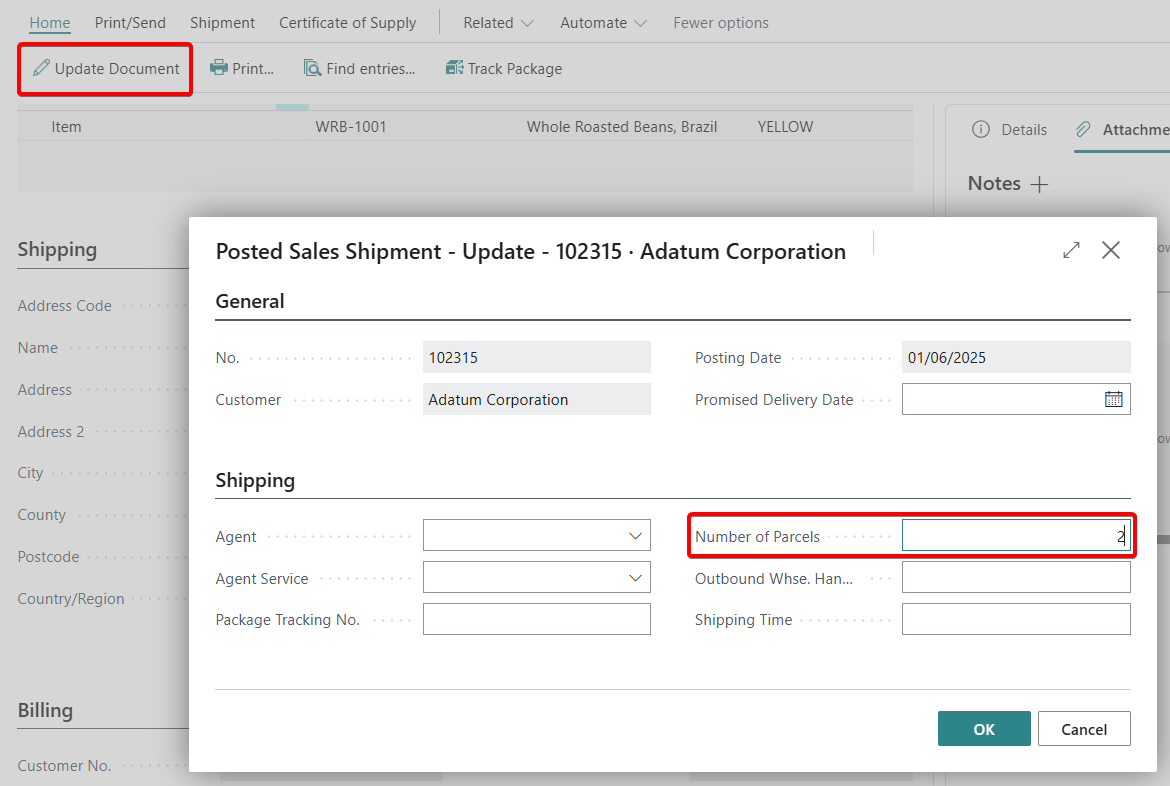
This can be edited via the Update Document action and popup:
If you need more detail or control over shipment parcels, please refer to the Configuring "Shipment Lines Options" in Shiptheory for Business Central support article.
Updating Business Central with shipment details
Once a shipment is booked with a carrier, Shiptheory will immediately update Business Central with the shipment and tracking details. This information can be found in the Details side panel of your selected source document (e.g. Sales Shipement or Posted Sales Invoice):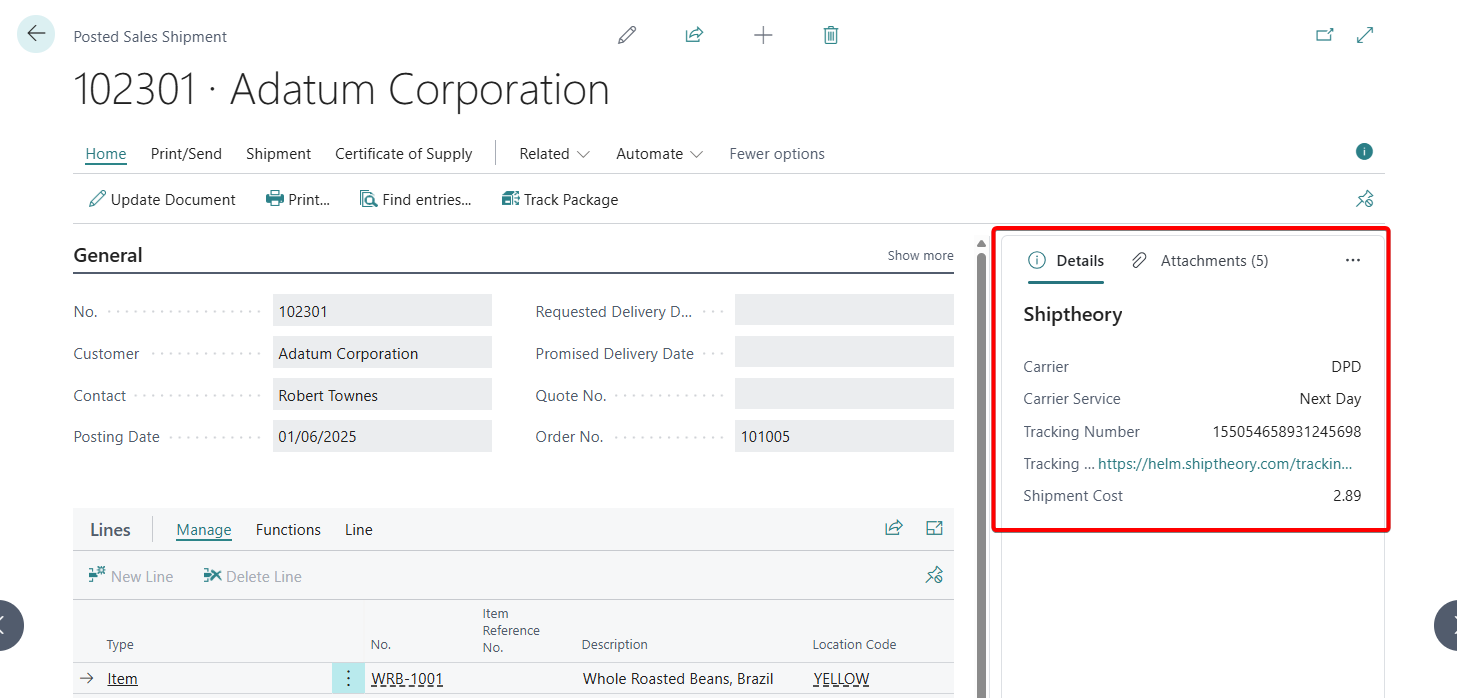
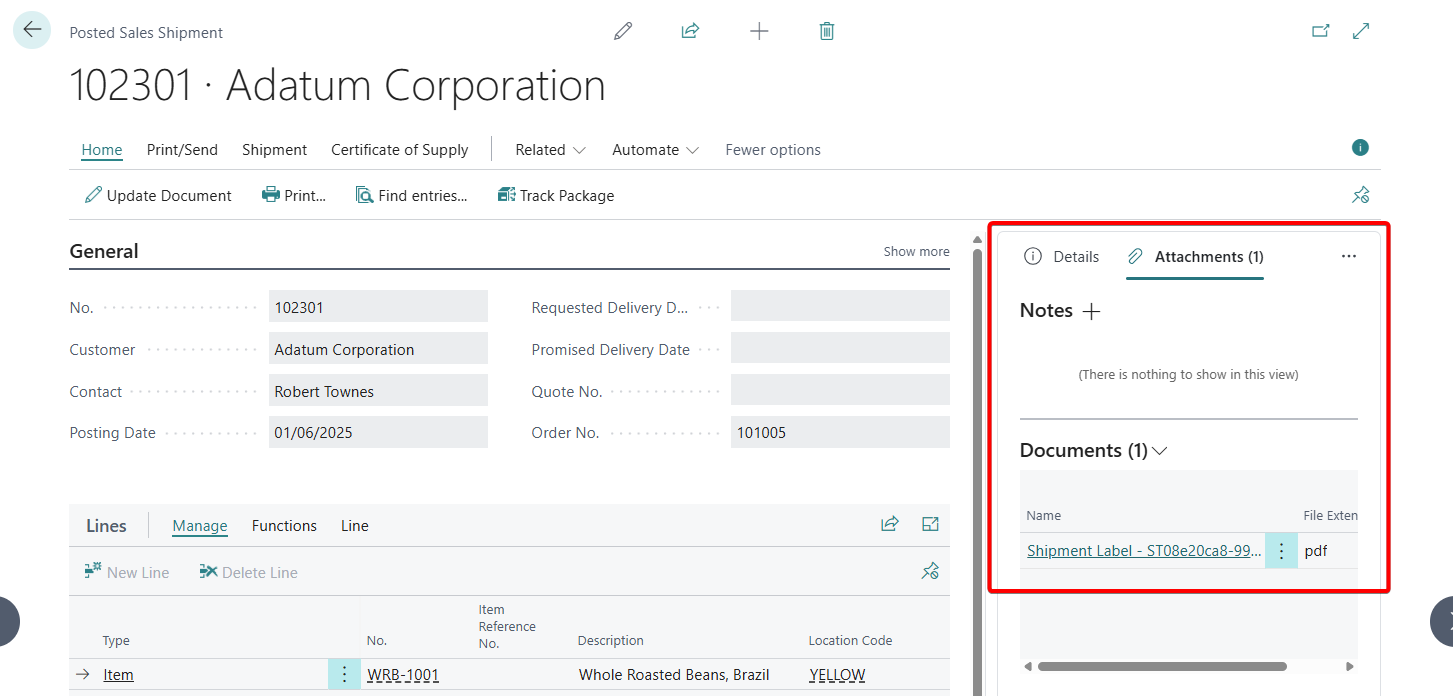
If you have enabled uploading shipping labels in your Shiptheory settings, then the PDF labels will be available under Attachments > Documents:
If you encounter any issues, please feel free to contact our support team. You can call us on 0117 403 4313 (UK) / +1 (629) 666-6726 (US) or reach us online here.