
For data stored in Brightpearl custom fields, you can enter the relevant Brightpearl custom field codes into the advanced settings of your Brightpearl integration in Shiptheory.
This is commonly used for information such as:
Recipient Tax numbers
Sender Tax numbers
Which printer you want the label to print from
Ship/Delivery Dates
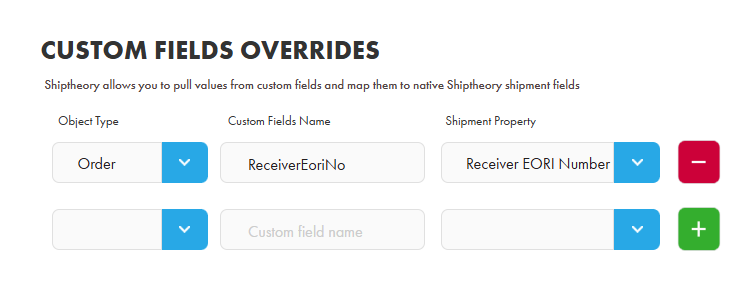
Using Brightpearl Custom Fields in Shiptheory
When using custom fields from Brightpearl, the most important value is the field name.
Each Brightpearl custom field has:
You will need to copy the field name from Brightpearl and paste it into the relevant advanced setting in Shiptheory.
To access these settings in Shiptheory:
Log in to your Shiptheory account.
Go to Channels > Brightpearl.
Scroll to the bottom of the Brightpearl settings page.
Click the cog icon to expand the advanced settings.
Enter the Brightpearl field code into the relevant setting.
Click Save.
Populating the Custom Field in Brightpearl
Please follow this guide on how to set up Custom Fields in Brightpear
Once the custom field has been created, open the relevant product or sale in Brightpearl and populate the custom field with the required data.
Shiptheory will then receive the data when the goods-out note is downloaded from Brightpearl.
If you encounter any issues, please feel free to contact our support team. You can call us on 0117 403 4313 (UK) / +1 (629) 666-6726 (US) or reach us online here.