
Step 1 - Adding Temu to Shiptheory
From your Shiptheory dashboard, click the Channels button on the left-hand side of the screen and select Manage Channels. Under the Connect A New Sales Channel section, type Temu into the search bar or scroll to find Temu and click on it.
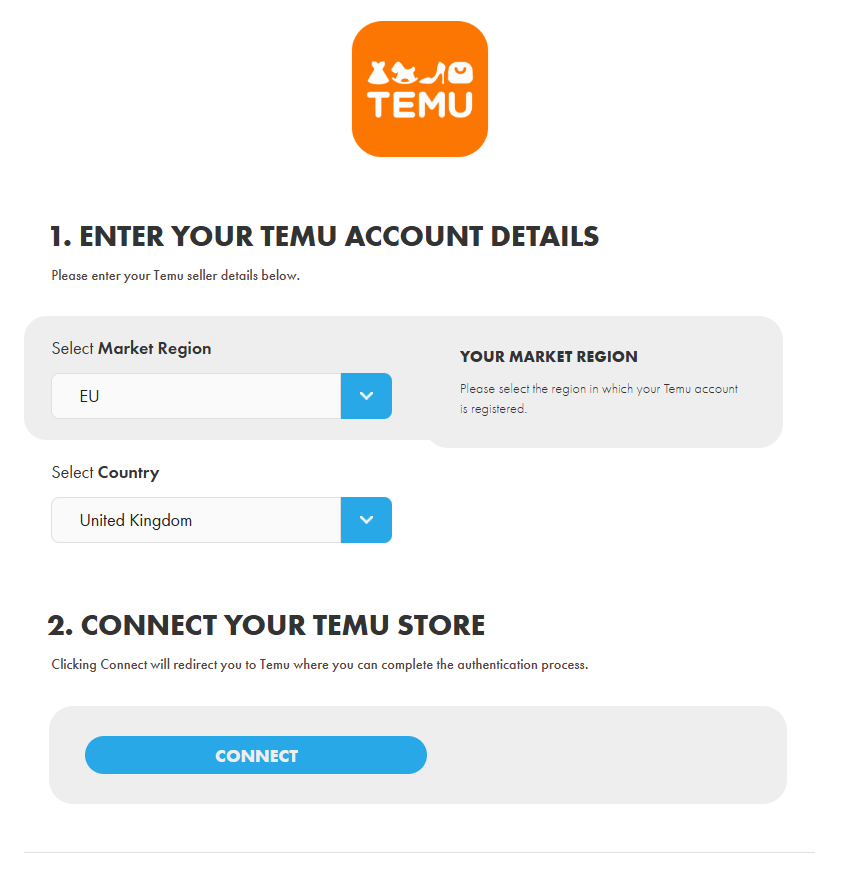
Step 2 - Set Your Region and Country
Before clicking Connect, make sure to select the region and country associated with your Temu account. This is required, and skipping it will result in your account not being set up correctly. Select your region (US, EU, or the rest of the world), then choose your country from the dropdown list.
When you're ready, click Connect.
Step 3 - Connect your account
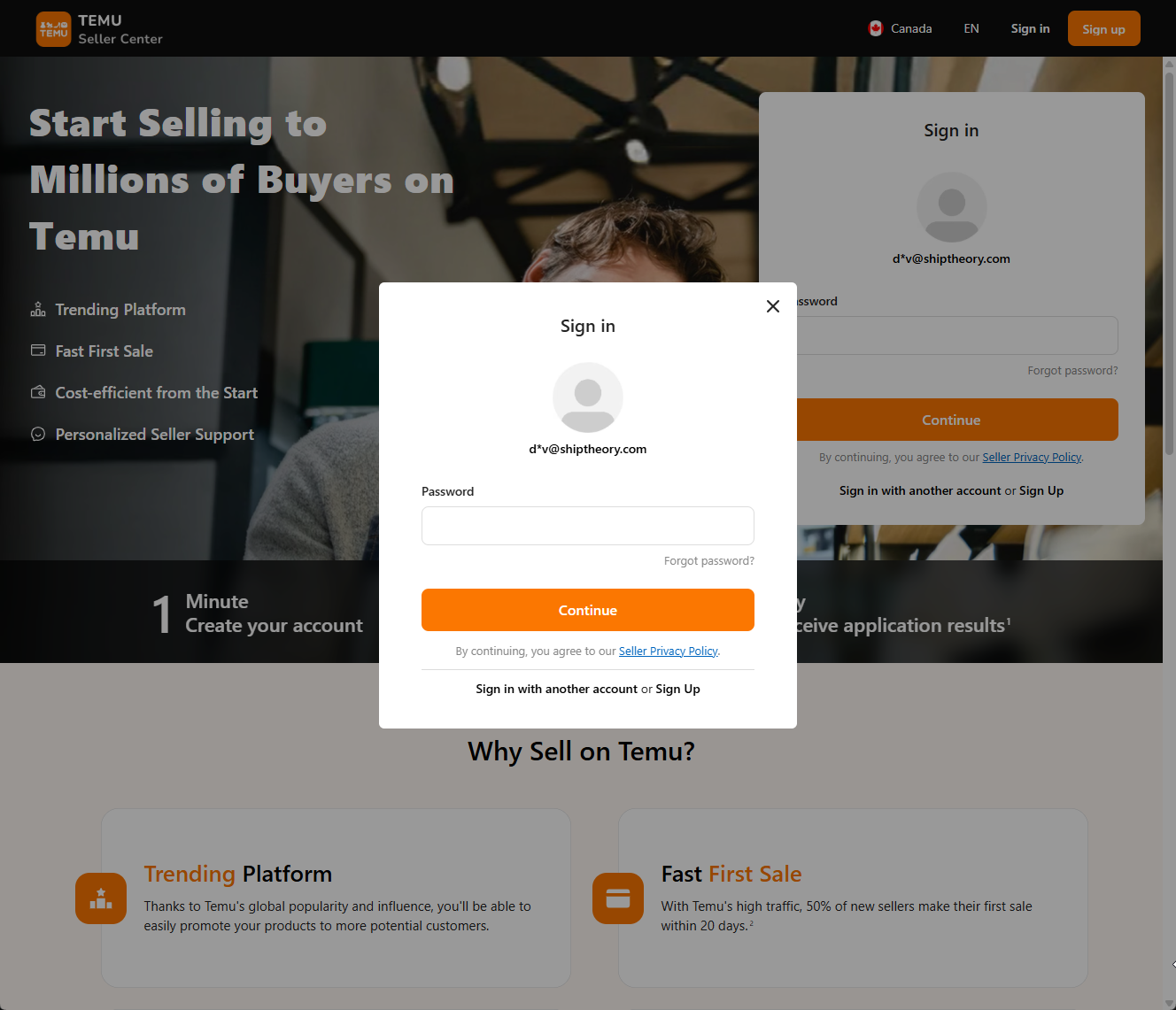
Once you click Connect, you'll be redirected to Temu and prompted to sign in to your account.
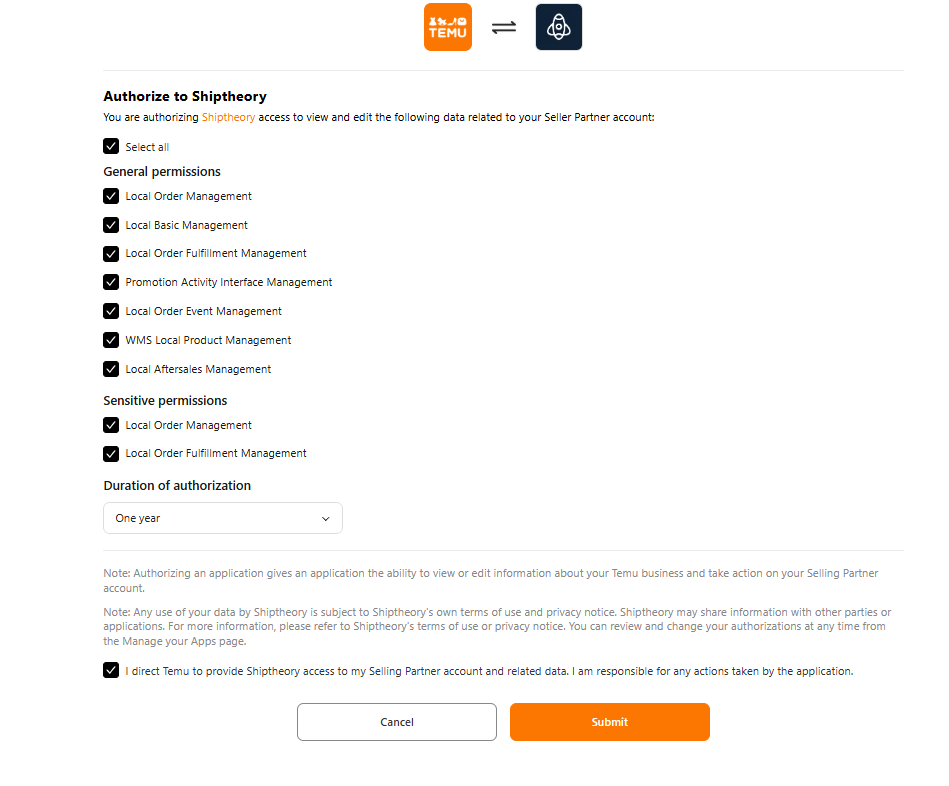
Once you sign in, you will automatically be directed to Temu's authorisation page. Tick the box and press the Submit button to approve the connection between Temu and Shiptheory.
Step 4 - You're All Done
After submitting, you'll be redirected back to your Temu settings page in Shiptheory, where you'll see a confirmation that your account is connected! All that is left to do is select your shipping warehouse from the dropdown and press save.
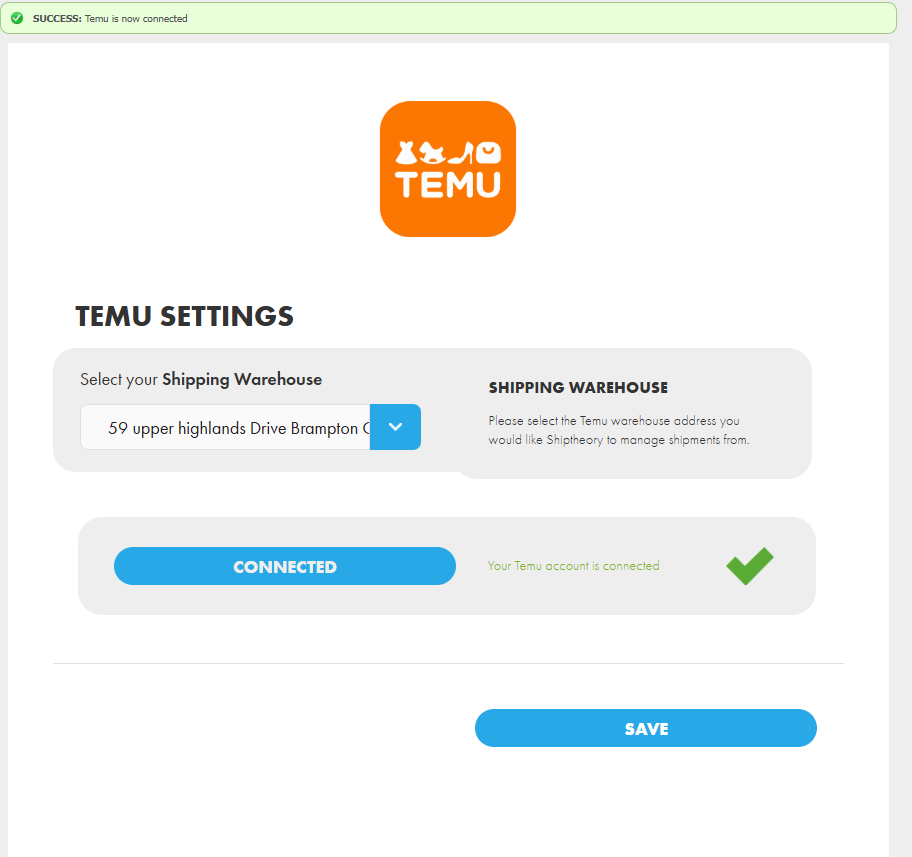
You're now all set to start shipping with Temu and ShipTheory!
Please note that each Temu account can only be connected to one Shiptheory instance.
If you encounter any issues, please feel free to contact our support team. You can call us on 0117 403 4313 (UK) / +1 (629) 666-6726 (US) or reach us online here.