
This article details the setup and use of the application designed to fetch shipping rates for your selected couriers. We will guide you through its integration into the Sales Order process and provide specific guidance aimed at mitigating potential errors during rate retrieval.
TABLE OF CONTENTS
- Setting up your Shipping Rates By Shiptheory NetSuite app
- How to use your app when creating a sales order
- Things to watch out for
Setting up your Shipping Rates By Shiptheory NetSuite app
- Go to NetSuite's marketplace and install the app called 'Shipping Rates By Shiptheory'. After the app has been installed you will be able to navigate to the app's settings page through the navigation bar.
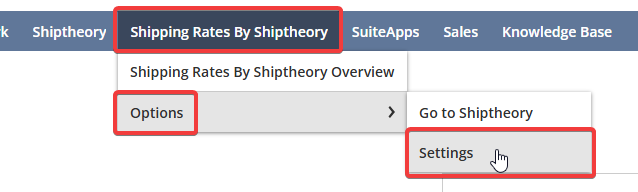
If you can't see this in your navigation bar, hover over the 3 white dots in the top right. You should then be able to view this menu.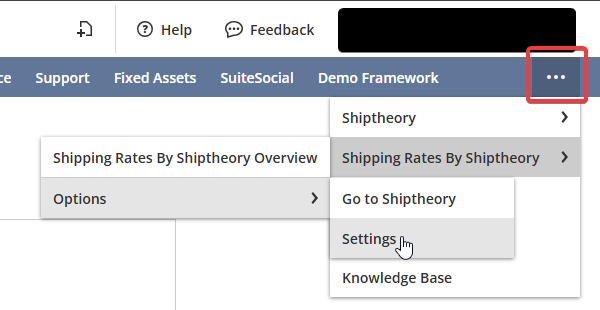
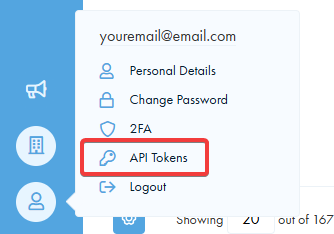
- Go to Shiptheory, and click on the profile icon in the bottom left. Then click on 'API Tokens'.
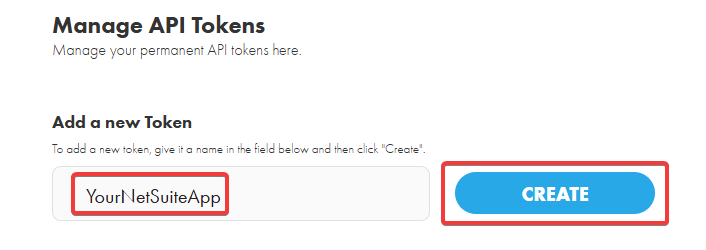
- Add a name and generate a token. It is important that you copy this token because it will not be available to view again.
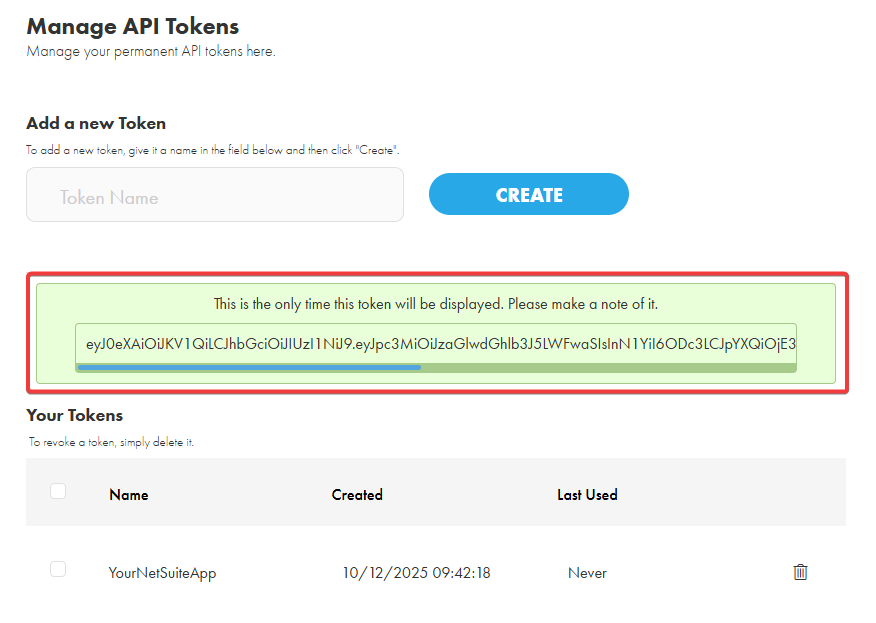
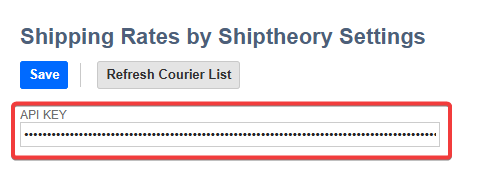
- Copy this token and paste it into the API Key field in the NetSuite App. Click 'Save'. Your API token will be encrypted before being saved in NetSuite's backend. You will not be able to view an unencrypted version of this API token again.
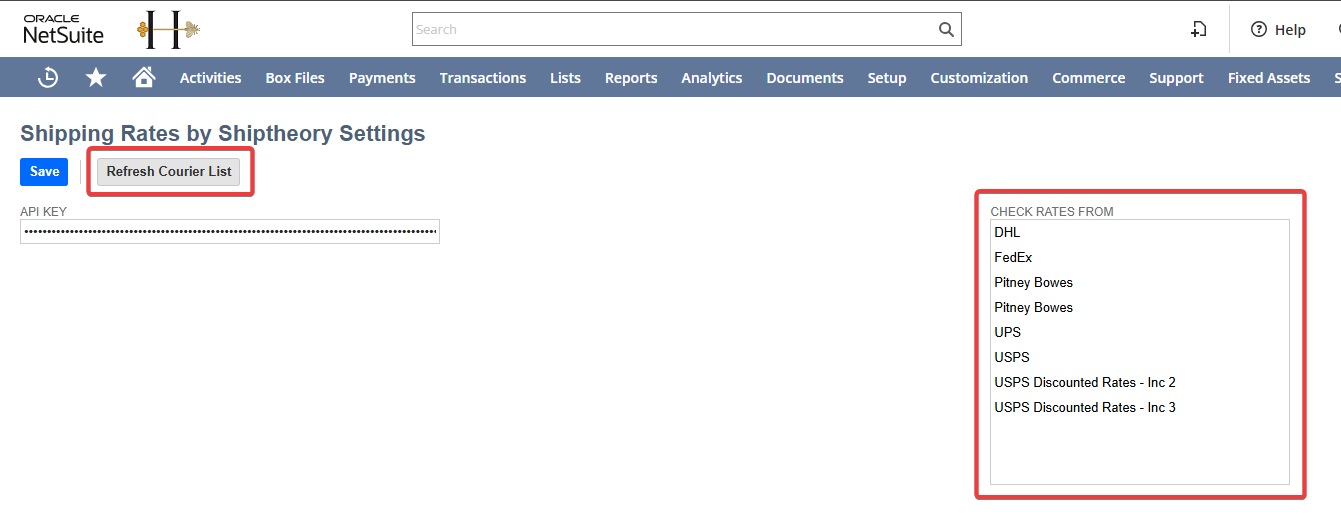
- Once the API Token has been saved you can click on the refresh couriers button. This will get a list of all the couriers that you have in Shiptheory. The names that you have set your couriers in Shiptheory will be displayed here for ease of use. Please select the couriers that you want to get rates from. You can drag and hold, or use the Ctrl button to select multiple couriers.
How to use your app when creating a sales order
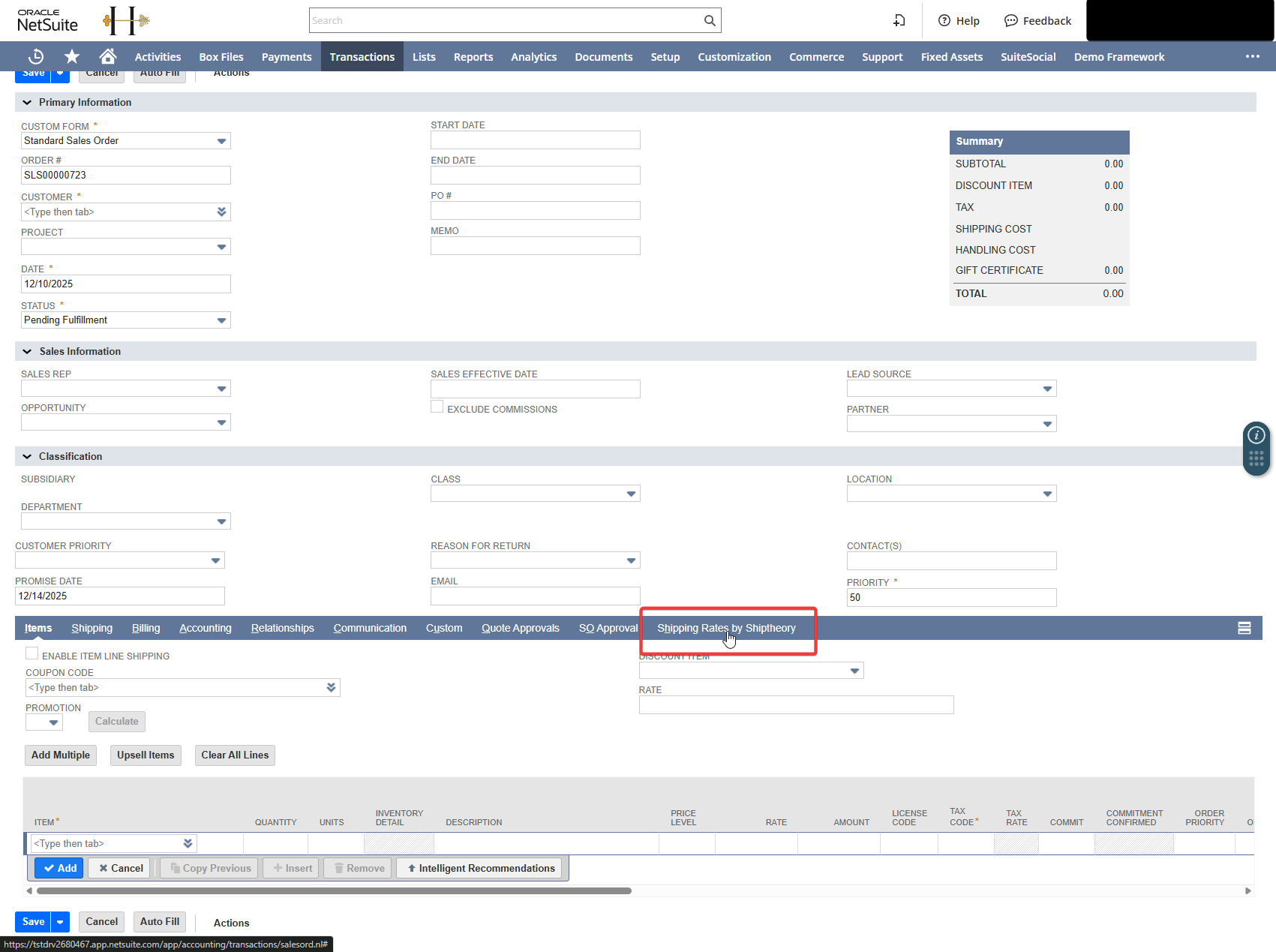
- Go through your normal process of creating an order. Once you get to a point where you want to book the order in with a courier, navigate to the Shipping Rates By Shiptheory tab.
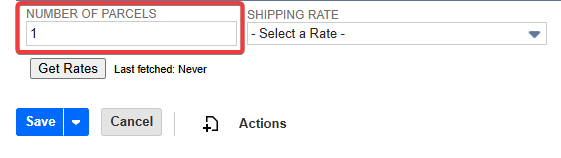
- Enter the desired number of parcels the order will be split up into.
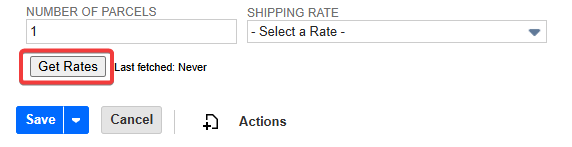
- Click 'Get Rates'. This will send a request to get all the rates for your couriers that you have selected in your settings.
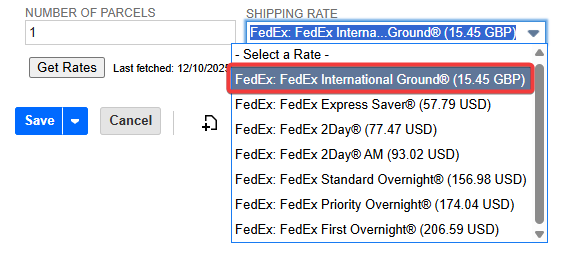
- All the couriers that have successfully returned rates will be populated in the dropdown. Select a service that you want to ship with.
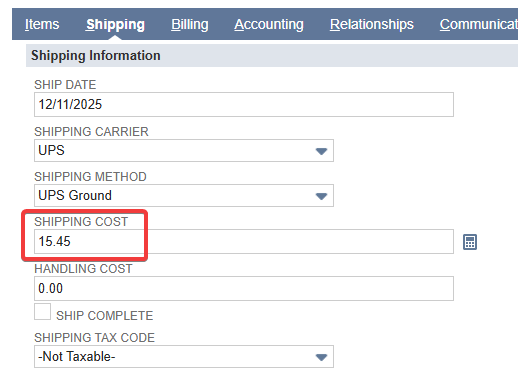
- The cost of the service will be automatically added to the sales order.
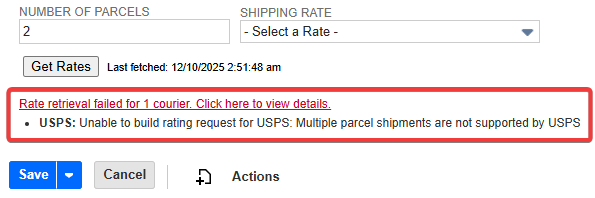
- If some couriers were unable to return their rates, you will be notified about the number of unsuccessful rates below. You can click on this text to view the full list of errors for each courier.
Things to watch out for
Couriers have different requirements as to what information is needed when checking their rates. It is important that as much information is filled out as possible to minimise errors when getting rates. Here are some quick things to watch out for:
1. Items not added to a sales order.
2. Insufficient information related to the recipient or the sender (examples include a missing phone number for either the recipient or the sender)
3. Items not having a "weight", as the total combined item weight is used.
If you encounter any issues, please feel free to contact our support team. You can call us on 0117 403 4313 (UK) / +1 (629) 666-6726 (US) or reach us online here.