
TABLE OF CONTENTS
- Booking Collection Service via Shipping Rule
- Booking Collection Service via Manual Booking
- Why there is no label returned after booking UPN's Collection Service ?
- Collection Services combination
Booking Collection Service via Shipping Rule
You can book third-party collection through either manual shipment booking or using a Shipping Rule. The following example demonstrates using a Shipping Rule to book a third-party collection.
Step 1 - Setting the Rule with enhancements
To the left, click Carriers > Shipping Rules
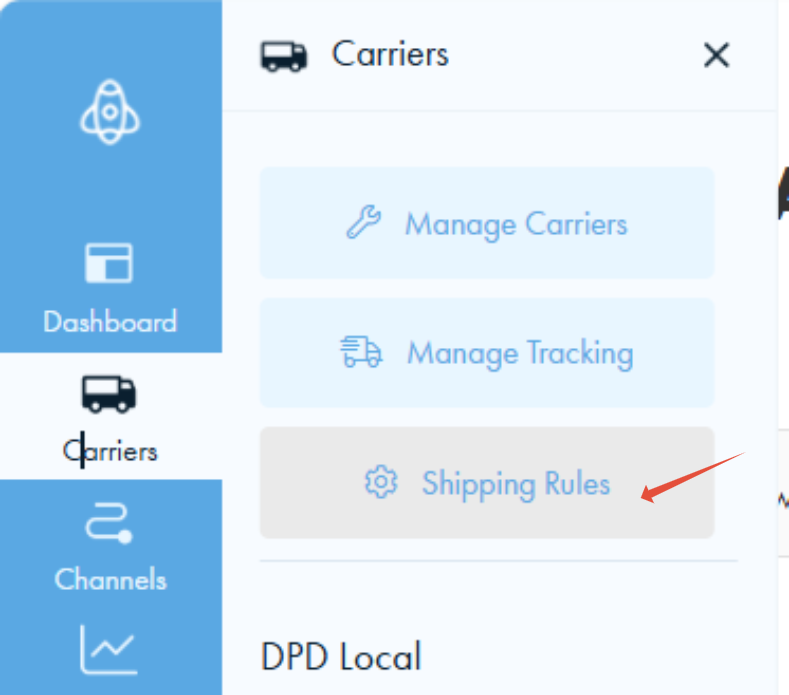
Then on the next page, click Add New Rule

To book a collection service, you must choose either of the following as UPN's Main service:
- Standard Collection
- Priority Collection
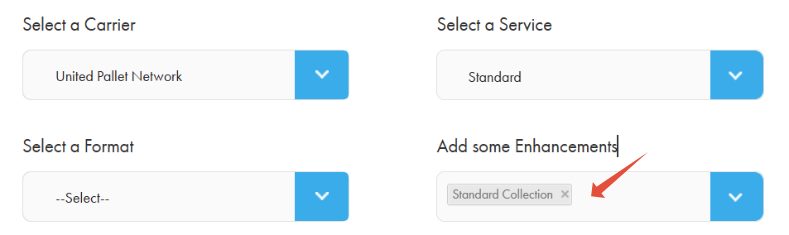
You can optionally add UPN's Premium Services by adding the following enhancements, you can only add one of the following:
- Collection: Before 10
- Collection: AM
- Collection: Saturday Before 10
- Collection: Saturday AM
- Collection: Restricted Access
- Collection: Book-In
- Collection: Booked
For example, to add "Collection: AM" as a UPN's Premium Service, include the corresponding enhancement as shown below:

You can optionally add UPN's Extra Services by adding the following enhancements, you can only add one of the following:
- Collection: Book-In
- Collection: Booked

Finally, if you want to add Tail Lift for the collection, please add "Collection: Tail Lift" into the enhancement:
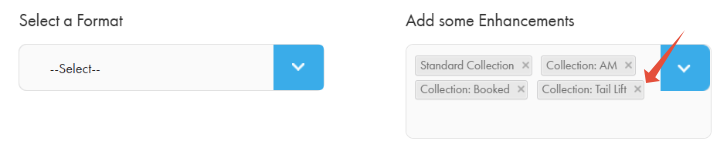
You can then setup your Shiptheory packages or Format details and edit formula for when this service should be used. To finish, click Save Rule.
To learn more about Shipping Rules, you can read it here.
Step 2 - Provide a Collection Date for collection service
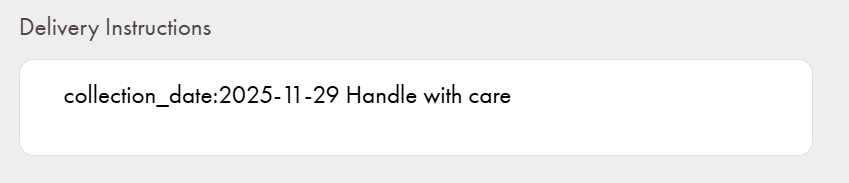
A Collection Date is needed to tell UPN when to collect the pallets. You can do so by providing the date in your shipment's instructions with this format:
"collection_date: yyyy-mm-dd".
For the example below, collection date will be set as 2025-11-29 and the new shipment instructions will be updated to "Handle with care".
Booking Collection Service via Manual Booking
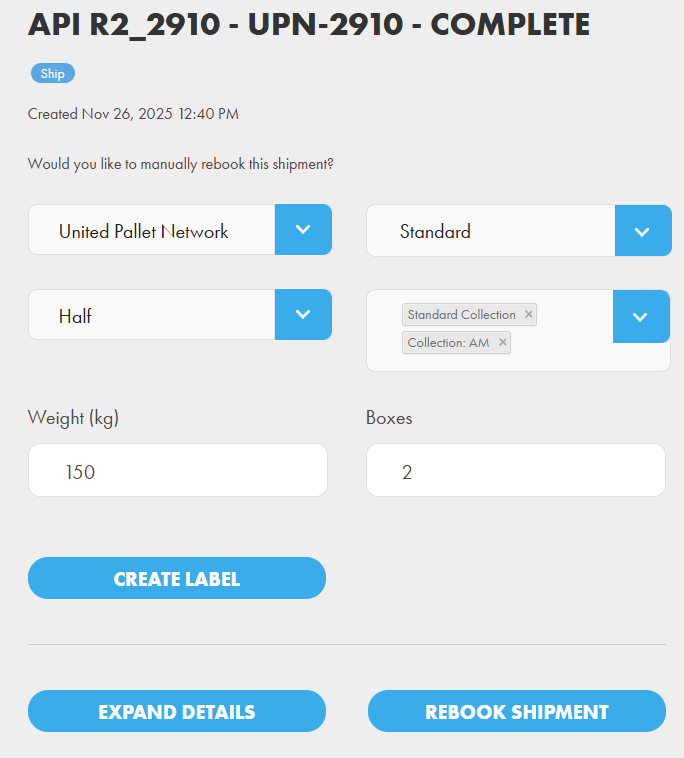
You can also book the shipment manually from the dashboard, and enter enhancements as shown above. Click Create Label to finalize the booking.
Why there is no label returned after booking UPN's Collection Service ?
Shipping Label is NOT available for Collection sevices via United Pallet Network API. It is because the collecting depot would generate the labels for their drivers when they pickup the freight. Please contact United Pallet Network for detail.
Collection Services combination
When shipping with United Pallet Network, not all Premium and Extra services are available to the Main service, you may refer the following for compatible services combinations:
| Main Service | Premium | Extra |
Priority | ||
Standard | ||
Priority | Collection: Before 10 | |
Priority | Collection: AM | |
Priority | Collection: Saturday Before 10 | |
Priority | Collection: Saturday AM | |
Priority | Collection: Restricted Access | |
Priority | Collection: PM | |
Standard | Collection: AM | |
Standard | Collection: Book in | |
Standard | Collection: Booked | |
Standard | Collection: AM | Collection: Booked |
Standard | Collection: Restricted Access | |
Standard | Collection: PM | |
Standard | Collection: PM | Collection: Booked |
If you encounter any issues, please feel free to contact our support team. You can call us on 0117 403 4313 (UK) / +1 (629) 666-6726 (US) or reach us online here.