
How to Download and Set Up ClawPDF
This guide will show you how to download and set up the third-party application ClawPDF.
ClawPDF is a virtual printer that can automatically save PDFs to a folder on your PC.
Downloading ClawPDF
To download ClawPDF, use the DOWNLOAD link provided.
Once you are on the ClawPDF GitHub page, scroll down until you find the download link.
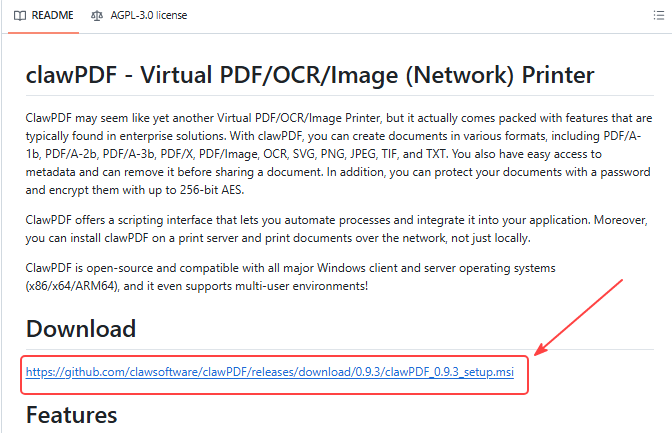
Note: Depending on your system, ClawPDF may require additional software components to be installed before it can run correctly.
On the GitHub page, check the Requirements section and download any required components as necessary.

Installing ClawPDF via Command Prompt
If you are unable to download or install ClawPDF using the standard installer, you can install it through Command Prompt instead.
Open Command Prompt on your Windows PC.
Paste the following command:
winget install clawSoft.clawPDF
Press Enter and follow the on-screen instructions.
Setting Up Auto-Save
Once ClawPDF has been downloaded and is running, you will see the ClawPDF window.
Click Profile Settings to continue.
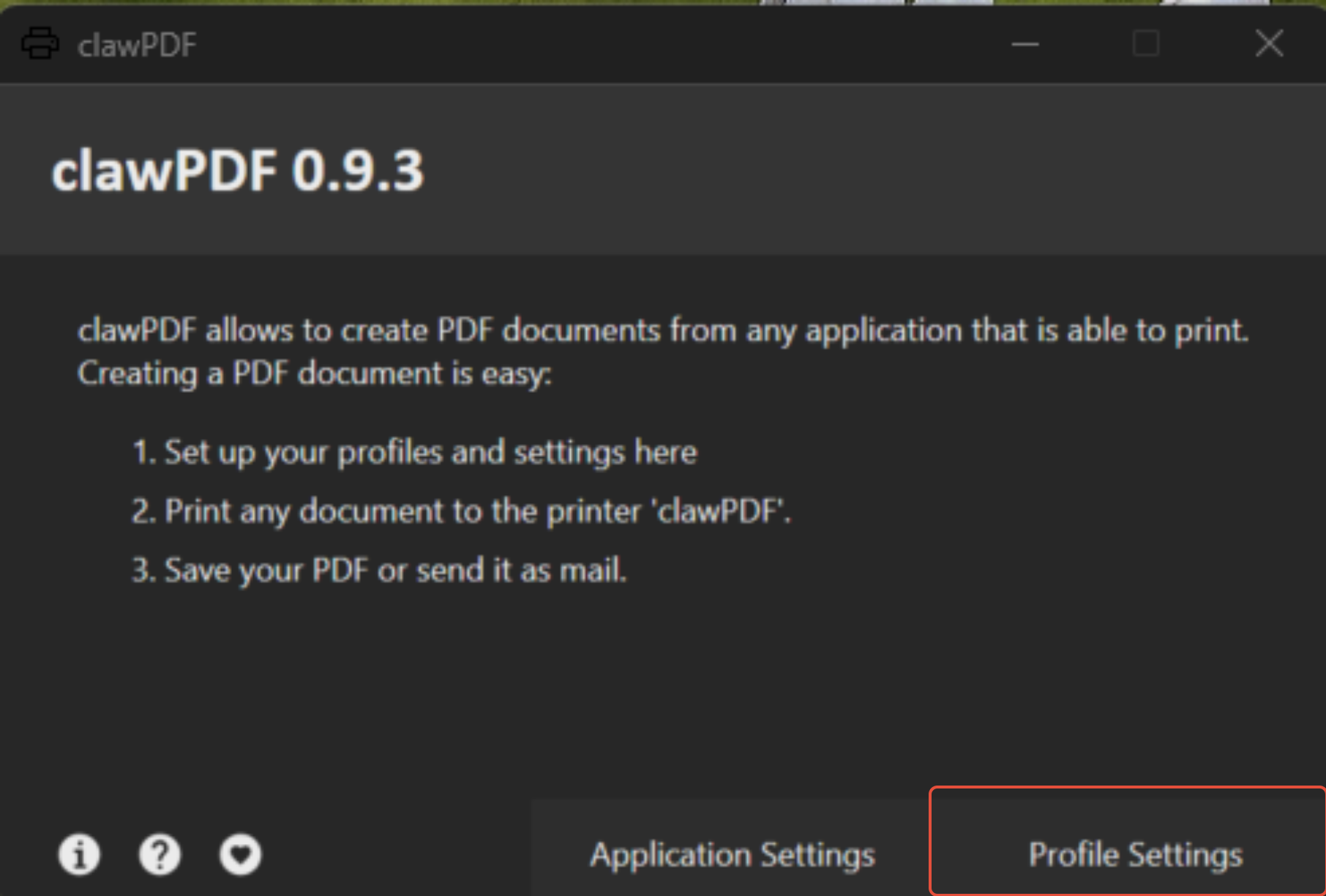
Within Profile Settings, navigate to the Auto-Save tab and enable the Auto-Save feature.
Select the folder where you would like your PDFs to be automatically saved.
Using ClawPDF with Shiptheory
Once setup is complete, select ClawPDF as your printer within Shiptheory.
Any files you print using ClawPDF will then be automatically saved as PDF files to the folder you selected during setup.
If you encounter any issues, please feel free to contact our support team. You can call us on 0117 403 4313 (UK) / +1 (629) 666-6726 (US) or reach us online here.