
Shiptheory supports the option to set an FTP or SFTP connection up as if it were a standard label printer. That means that all the same printing rules and options that are available in Shiptheory are available to upload shipping labels and customs documentation to an FTP server.
In the left-hand main menu in Shiptheory, select Settings > Printing > Configuration and scroll down the page to Upload Labels via FTP/SFTP:
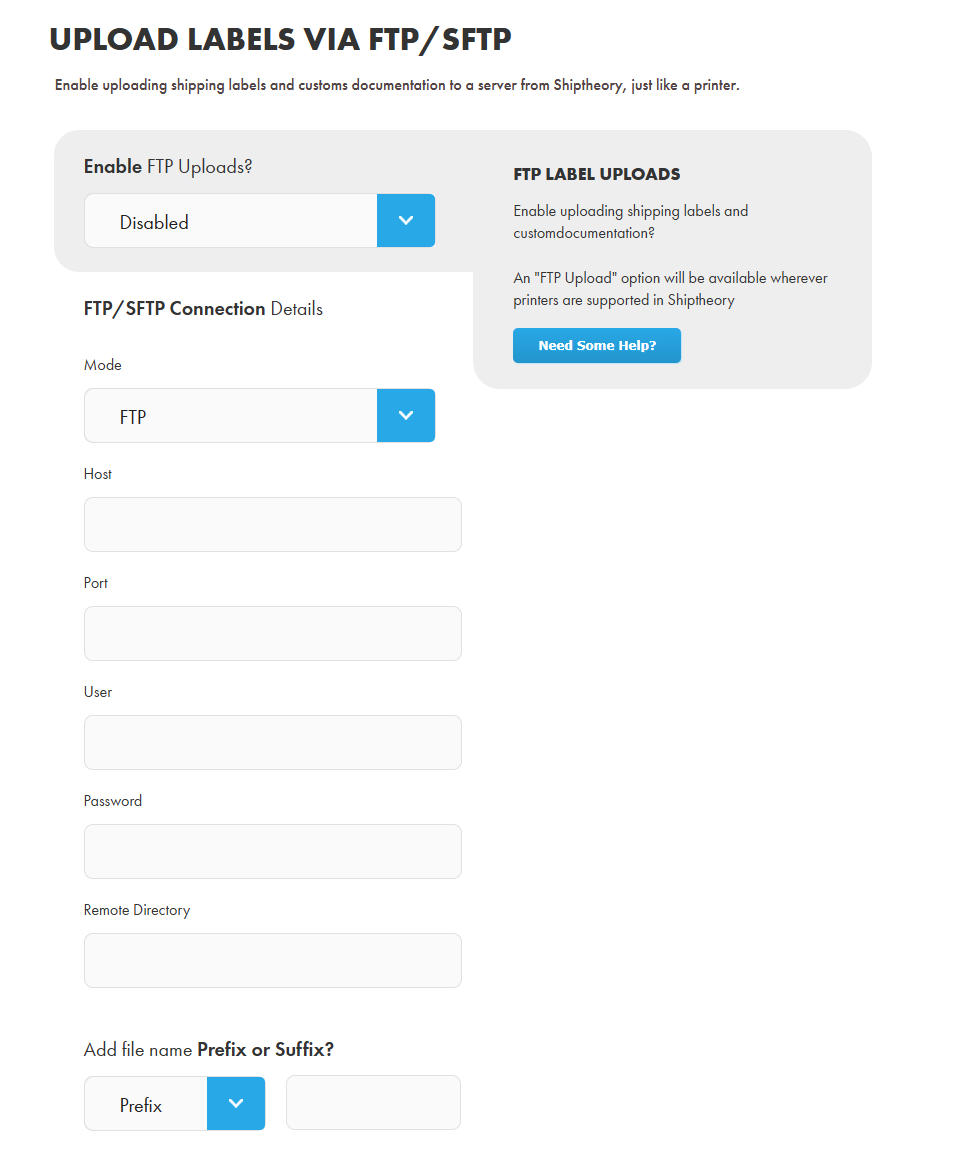
Under Mode select whether you're connecting to an FTP or SFTP server and then continue to enter the connection details.
- If you need to save labels into a folder or subfolder on your server, enter the path into Remote Directory, for example "labels/uploads". Make sure the folders exist on your server - Shiptheory will not create them.
- You can also add a standard prefix or suffix to all uploaded labels, if required. Simply select which and enter the value to add to the start or end of the file name.
Select Enabled and then Save.
Once saved, scroll back down the page to Avail and select the new "FTP/SFTP Upload on <your server>" option to enable the printer to be selected in Shiptheory's menus and rules, and click Save: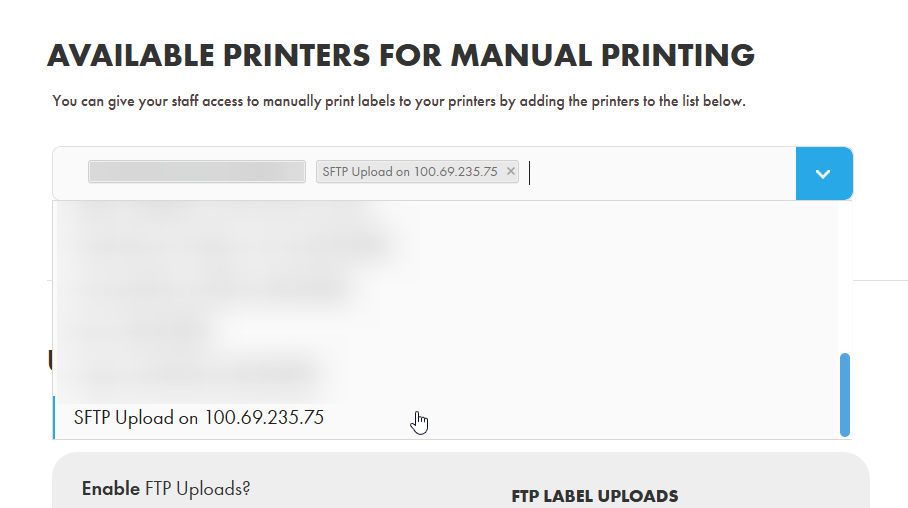
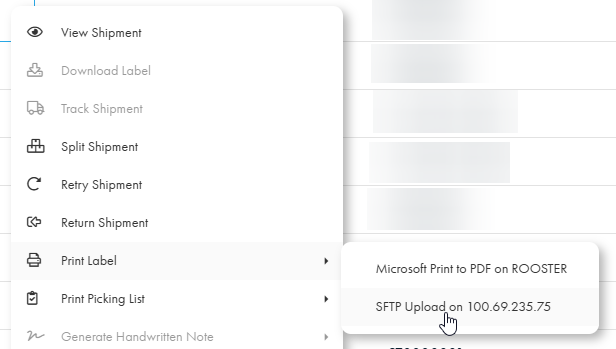
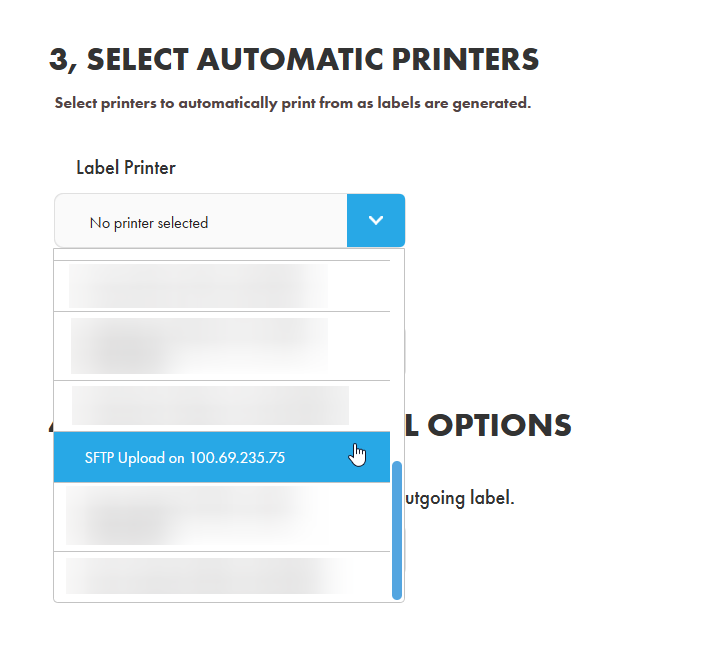
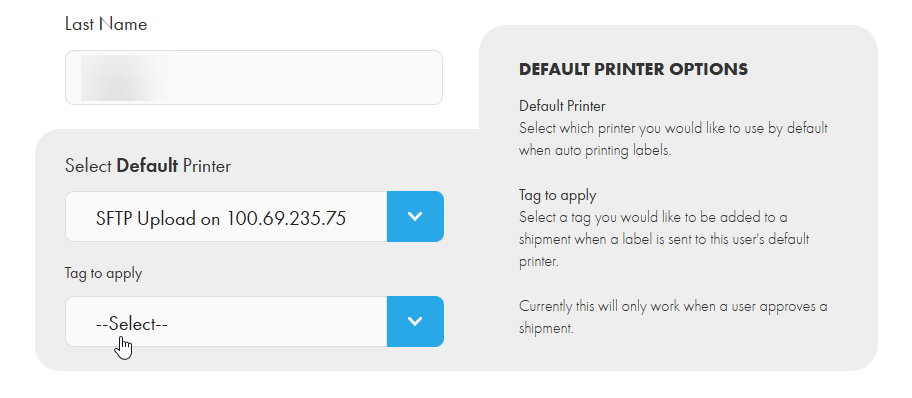
You will now find the same "FTP/SFTP Upload on <your server>" option in all the same places you would normally find your printers, for example:
- Right-click menu on the dashboard:
- Automatic shipping rules:
- User printers:
If you encounter any issues, please feel free to contact our support team. You can call us on 0117 403 4313 (UK) / +1 (629) 666-6726 (US) or reach us online here.